Installation
Run as a Windows Service
Follow these steps to run the Aladdin SDS as a Windows Service:
-
Download the .msi installer from Aladdin SDS Installer.
-
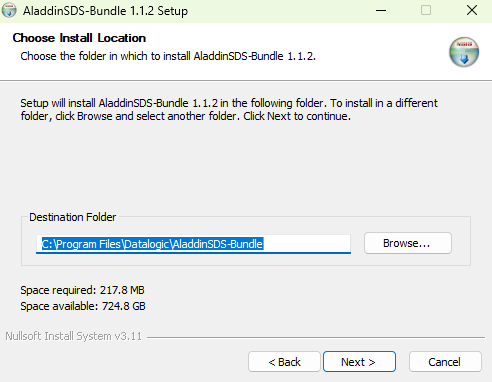
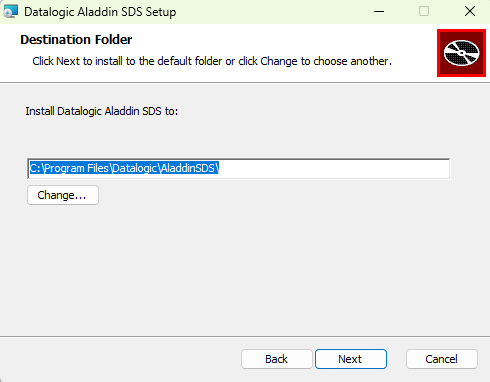
Run the installer. The installation process is two-step:
- Datalogic SDS Updater service
- AladdinSDS
-
Select the installation folder for Datalogic SDS Updater:
-
Select the installation folder for Datalogic SDS Updater:
-
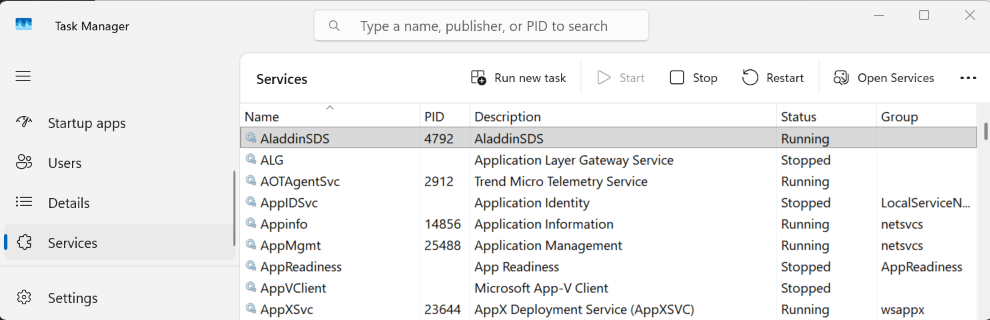
Check if AladdinSDS is running in the task manager:
-
Open Aladdin SDS. Check if the version is the same as the one of the binary:
{
   "version": "1.1.2",
   "memoryUsage": {
      "init": 528482304,
      "used": 23519312,
      "committed": 71303168,
      "max": 8447328256
   },
   "apiVersion": "1.1.2"
} -
You can find the OpenAPI documentation at http://localhost:9000/docs.
Installation Folders
The Aladdin SDS installation consists of two main components, each located in different directories:
Configuration Files (Shared)
Both the Datalogic SDS Updater and AladdinSDS services store their configuration files in:
C:\ProgramData\Datalogic\
with the following subdirectories:
-
*C:\ProgramData\Datalogic\SDSUpdater* - SDS Updater configuration and resources
config.toml- Updater service configurationdownloads/- Downloaded update packageslogs/- Updater service logsresource/- Updater resources
-
*C:\ProgramData\Datalogic\AladdinSDS* - AladdinSDS configuration and data
config.toml- AladdinSDS service configurationconfig.properties- Additional configuration propertieslog4j2.properties- Logging configurationotel.properties- OpenTelemetry configurationdlrmus/- Runtime modulespackages/- Installed packages and pluginsresource/- Resource files
Application Files and Logs (User-Selected)
During installation, you select a folder where AladdinSDS application files and logs are stored. By default, this is:
C:\Program Files\Datalogic\AladdinSDS\
This folder contains:
AladdinSDS-<version>.jar- Main application JAR fileAladdinSDS.exe- Windows service executableDeviceDetectionLib.jar- Device detection librarydl-sdk-service-service.exe- Service wrapper executableopentelemetry-javaagent-<version>.jar- Telemetry agentjre/- Java Runtime Environmentcerts/- Certificate files for MQTT/TLS connectionslog/- Application runtime logsresource/- Application resourcesscripts/- Utility scripts
Configuration changes should be made to the files in C:\ProgramData\Datalogic\, not in the application folder. After modifying configuration files, restart the service for changes to take effect.
Configuring Aladdin SDS
The primary configuration is managed through the config.toml files located in C:\ProgramData\Datalogic\AladdinSDS\config.toml (for AladdinSDS) and C:\ProgramData\Datalogic\SDSUpdater\config.toml (for the Updater).
For detailed configuration documentation, see:
- AladdinSDS Configuration - Complete guide for configuring the main AladdinSDS service including MQTT, HTTP API, agent settings, and device filters.
- SDS Updater Configuration - Guide for the automatic update service configuration including update checks, schedules, and Edge gateway integration.
Always backup the config.toml files before making changes, as incorrect configuration may prevent the service from starting. After modifying configuration files, restart the respective service for changes to take effect.