SDS Package Generation
Step 1: Create the configuration file
Create the configuration file on the Aladdin application. This step only is required when you plan to update the scanner configuration with the service port. Otherwise, you can manage to use the S37 or DAT file to configure scanner. Aladdin has 2 different ways to create the configuration file as below.
Online mode - Create the configuration file with a scanner
If you are using AladdinSDS and Aladdin on the same computer, stop AladdinSDS service in the Task Manager before running Aladdin.
-
Connect the scanner with PC. Detect it with Aladdin application.
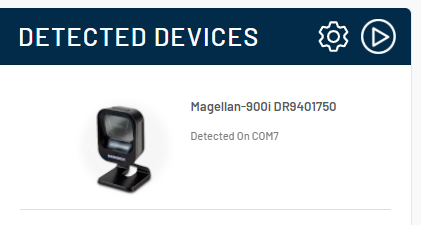
-
Click on scanner to open the configuration page. Select "Custom Configuration File" on side bar.
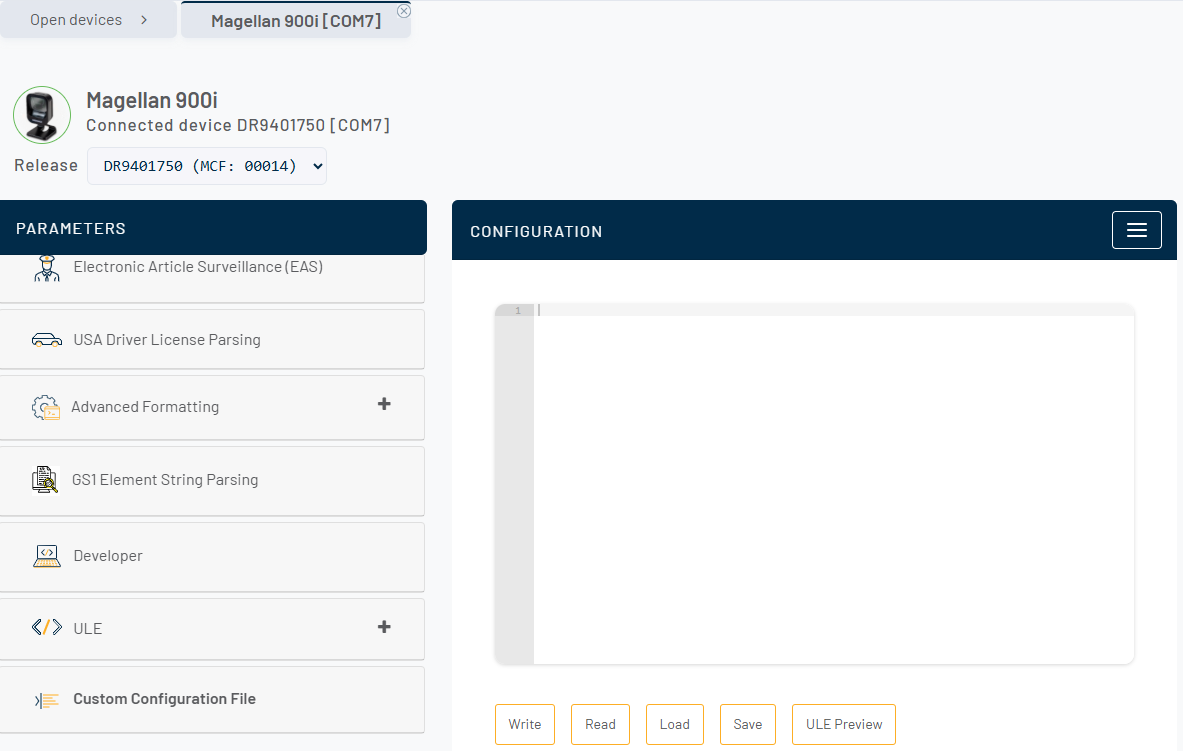
-
Click on "Read" button. Aladdin will read the current configuration of scanner.
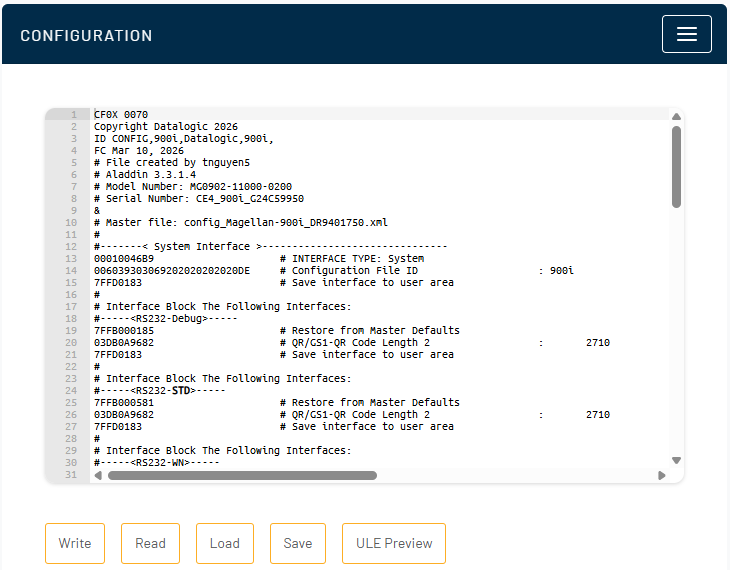
-
Click on "Save" button to save the current configuration into the configuration file.
Offline mode - Create the configuration file without a scanner
-
Select the scanner from Aladdin home page (ex: Magellan 900i).
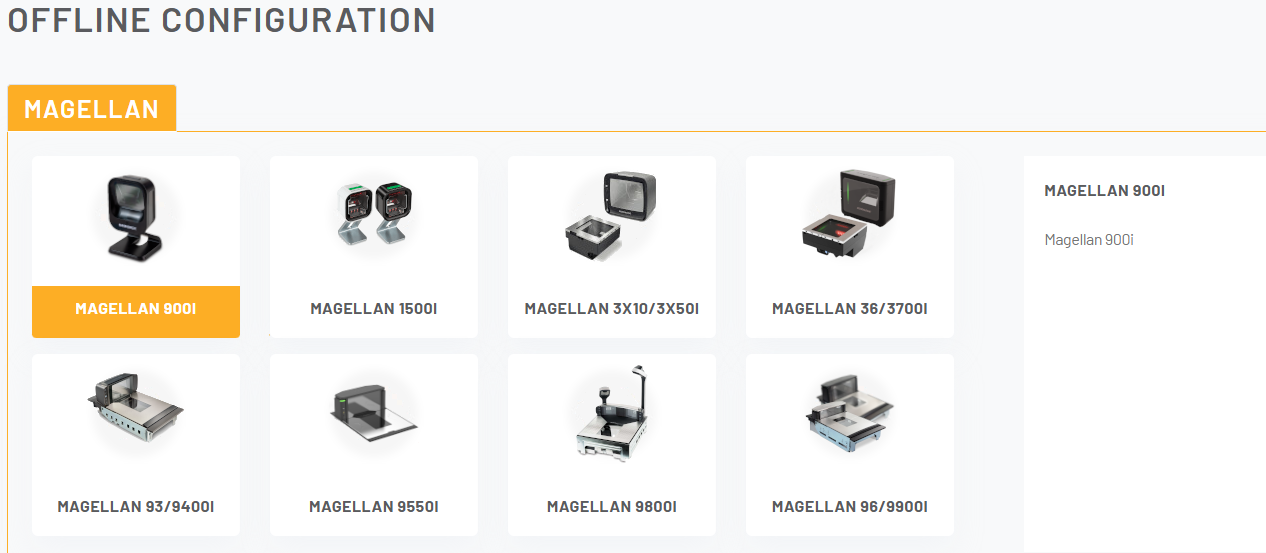
-
Configure the parameter as your requirement (ex: Good Read Beep Volume to Medium).
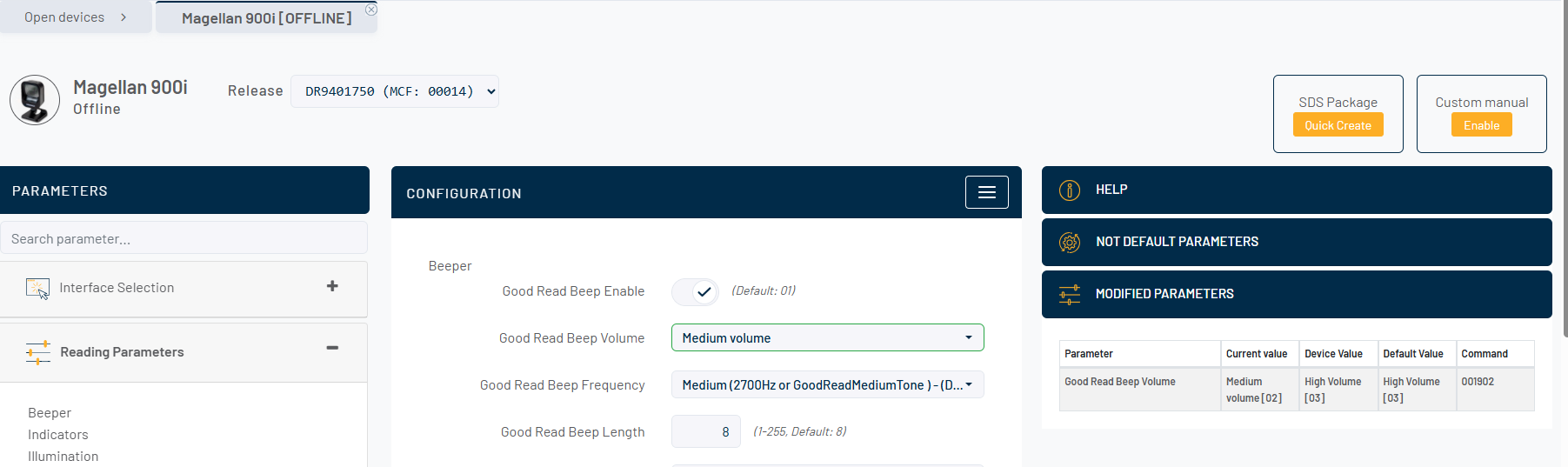
-
Select "Custom Configuration File" on side bar. Click on "export-ccf-offline" button. Aladdin will export the current configuration on this configuration page.
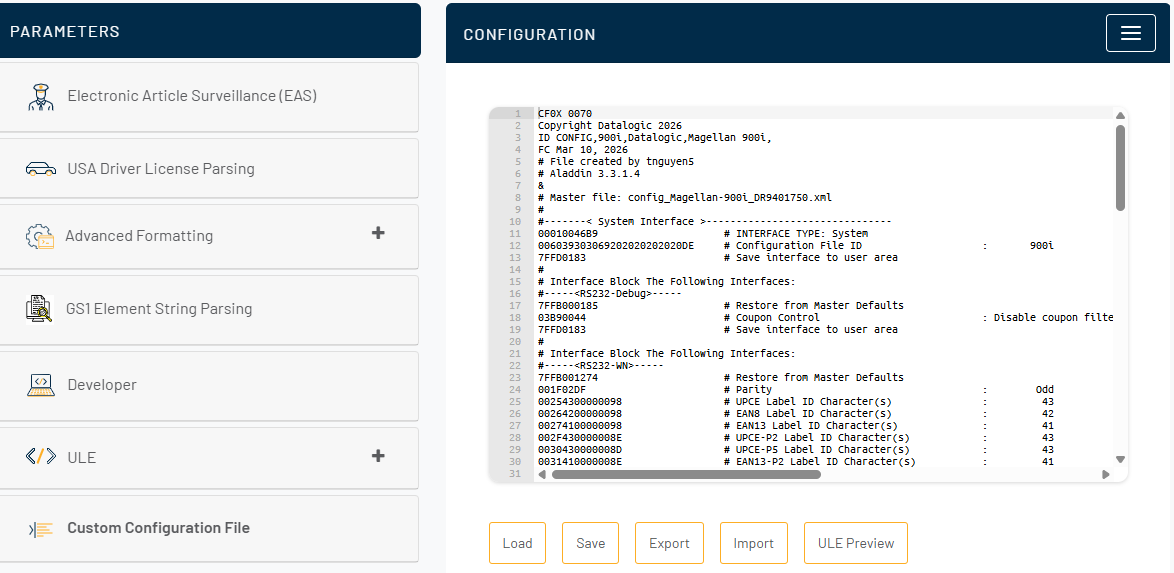
-
Click on "Save" button to save the current configuration into the configuration file.
Step 2: Create the SDS package
Follow these steps to create the SDS package on the Aladdin application.
-
Click on the "SDS PACKAGE" button on Aladdin header to open SDS package generation page.

-
Input Device model.
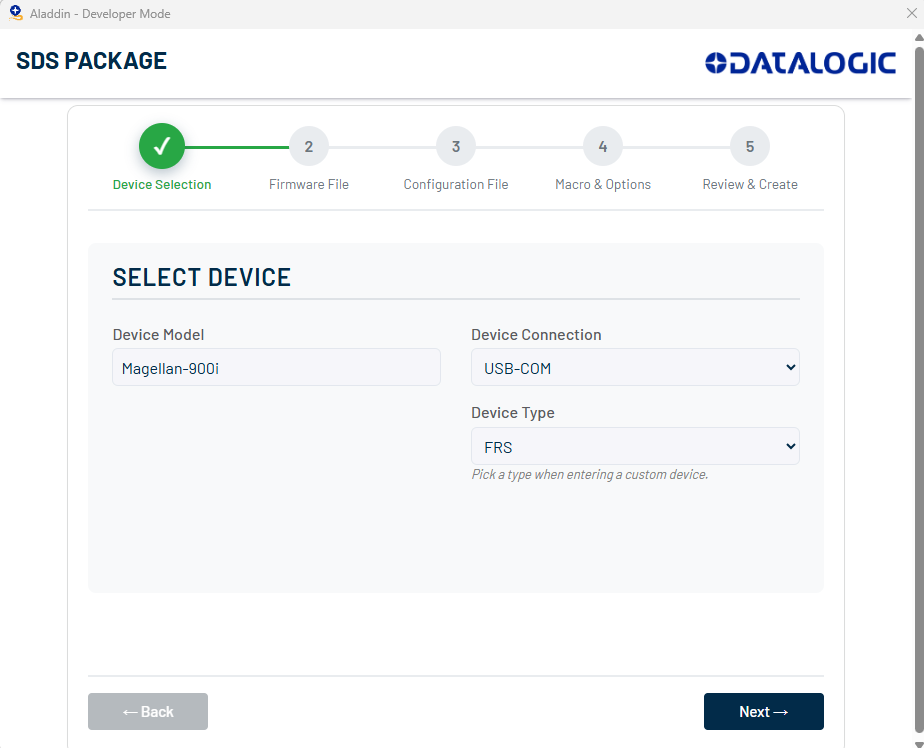
-
Select the suitable scanner firmware (If you want to upgrade the new firmware for the scanner).
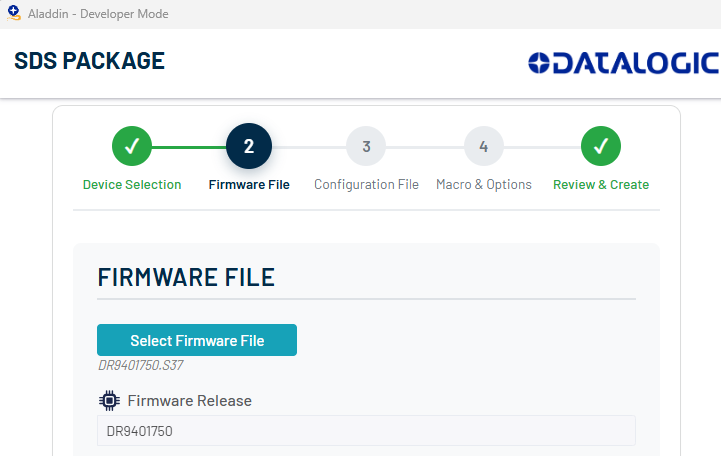
-
Select the configuration file that had been created on the above step (If you want to apply the new configuration to the scanner).
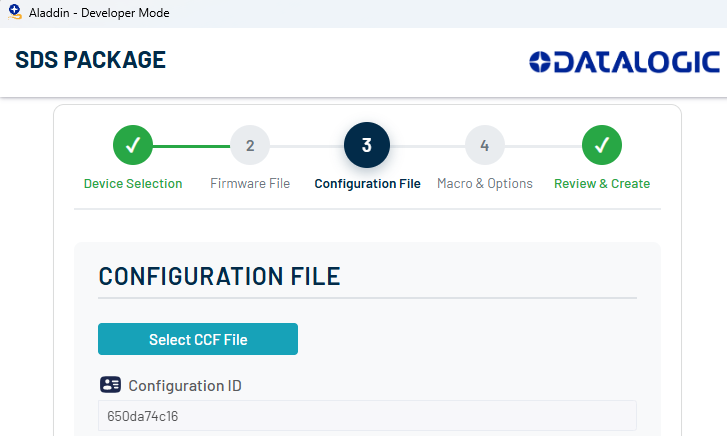
-
Next to the final page. Click on "Create SDS Package" to save the package.
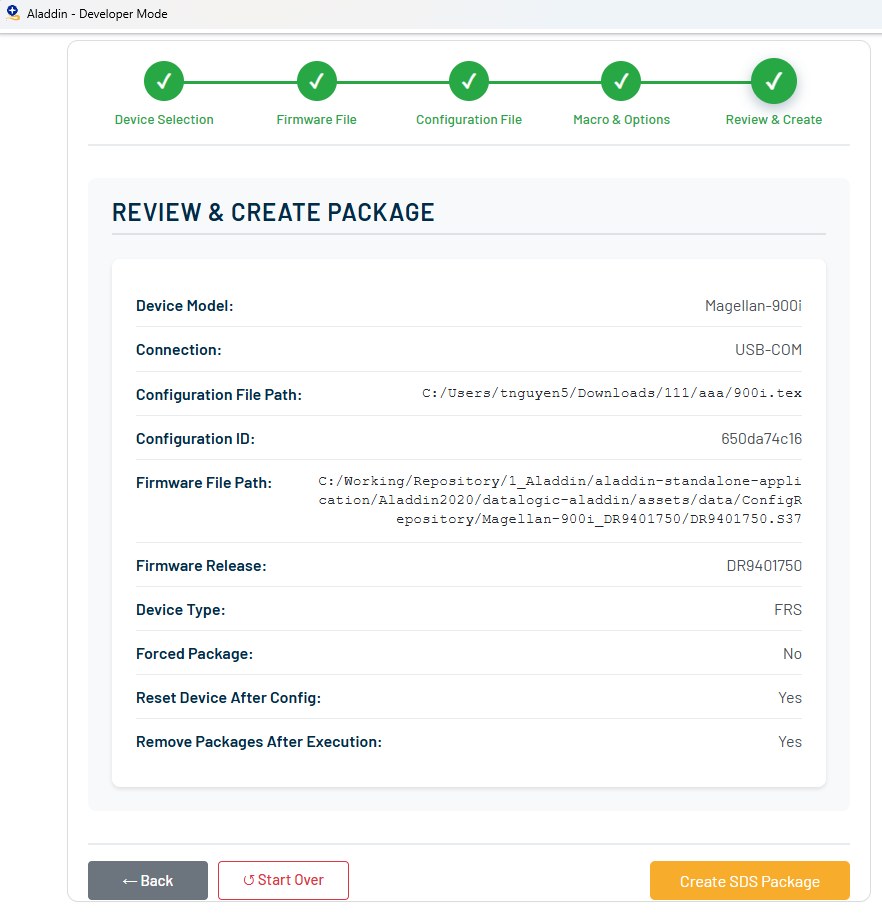
-
Then this package can be used to configure the device through Datalogic Connect.
Remember to restart AladdinSDS service if you previously stopped the service.