SDS Package Generation
Step 1: Create the configuration file
Create the configuration file on the Aladdin application. This step is required only when you plan to update the scanner configuration over the service port. Otherwise, you can use an S37 or DAT file to configure the scanner. Aladdin offers two ways to create the configuration file.
Online mode - Create the configuration file with a scanner
If you are using AladdinSDS and Aladdin on the same computer, stop AladdinSDS service in the Task Manager before running Aladdin.
-
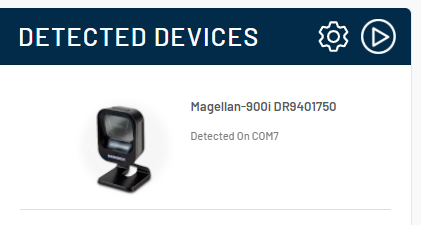
Connect the scanner to the PC, then detect it with the Aladdin application.
-
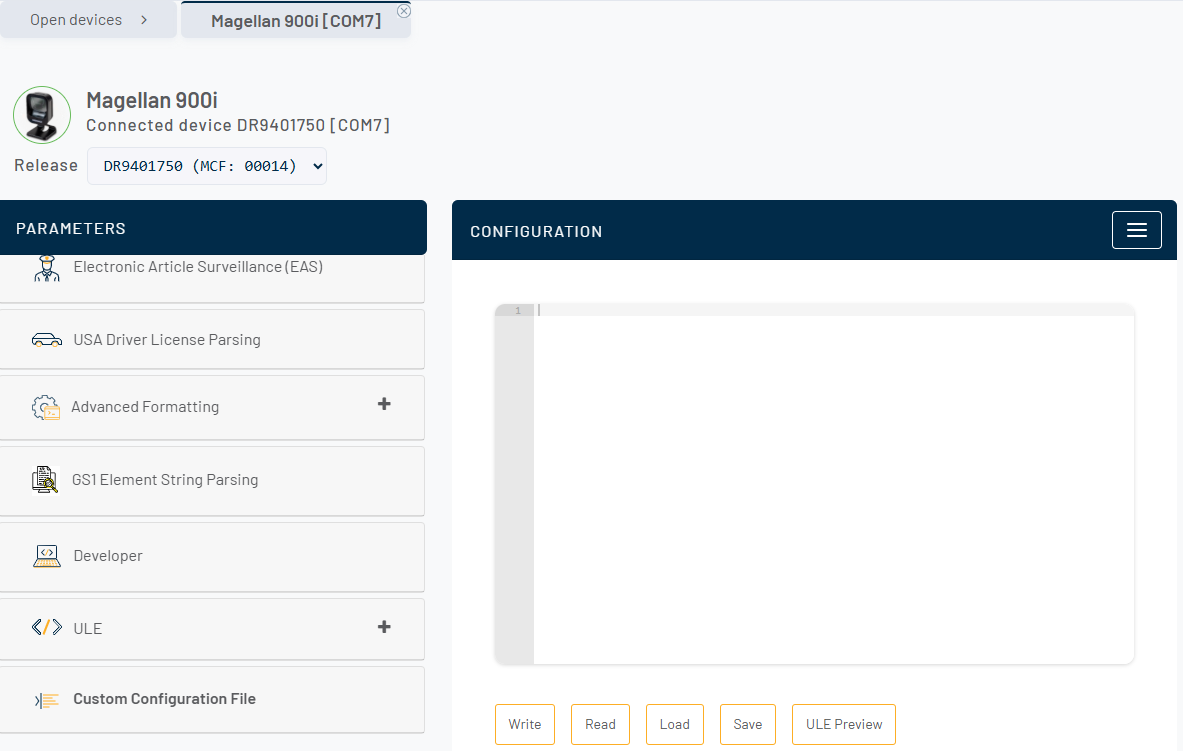
Click the scanner to open its configuration page, then select Custom Configuration File in the sidebar.
-
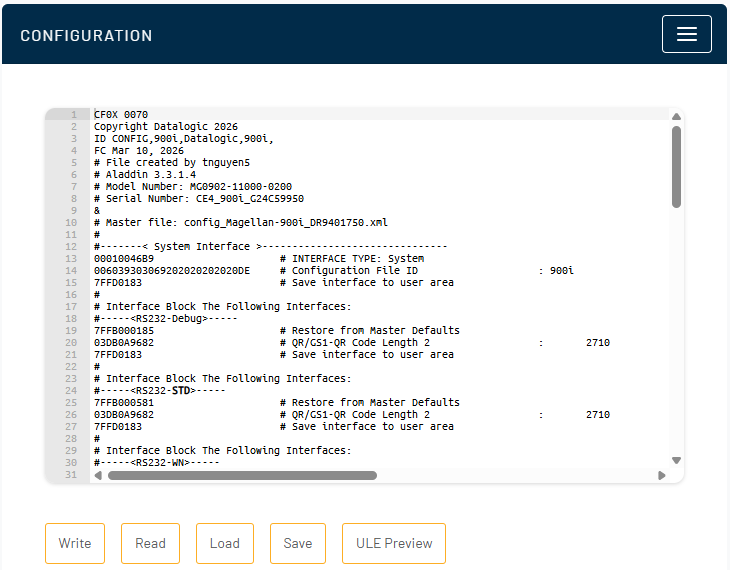
Click Read. Aladdin reads the current configuration of the scanner.
-
Click Save to store the current configuration in the configuration file.
Offline mode - Create the configuration file without a scanner
-
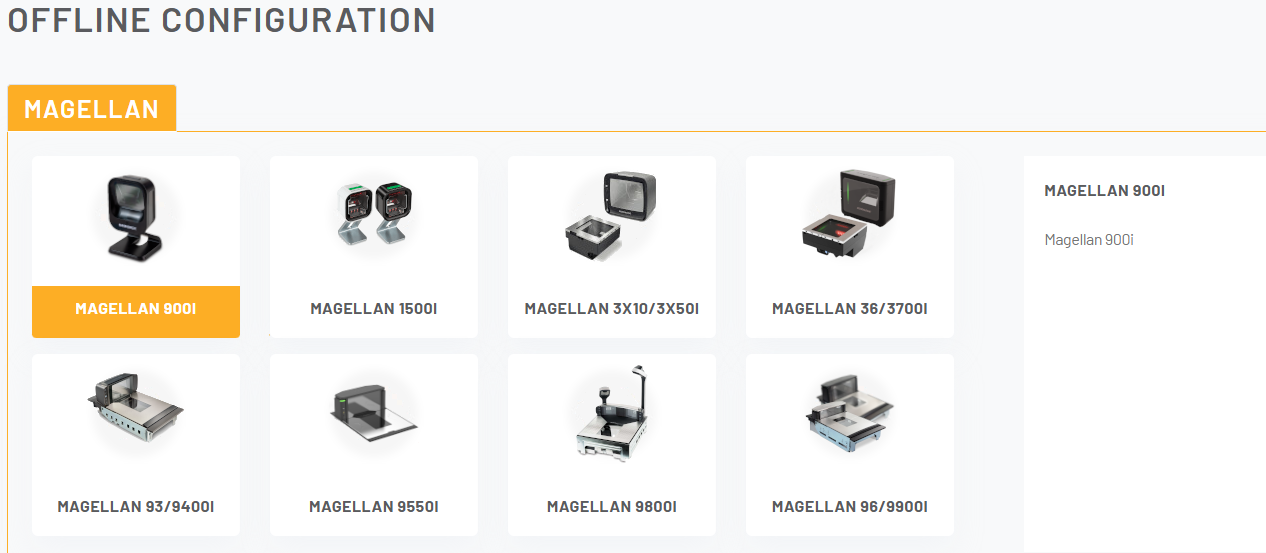
Select the scanner model from the Aladdin home page (for example, Magellan 900i).
-
Configure the parameters you need, for example set Good Read Beep Volume to Medium.
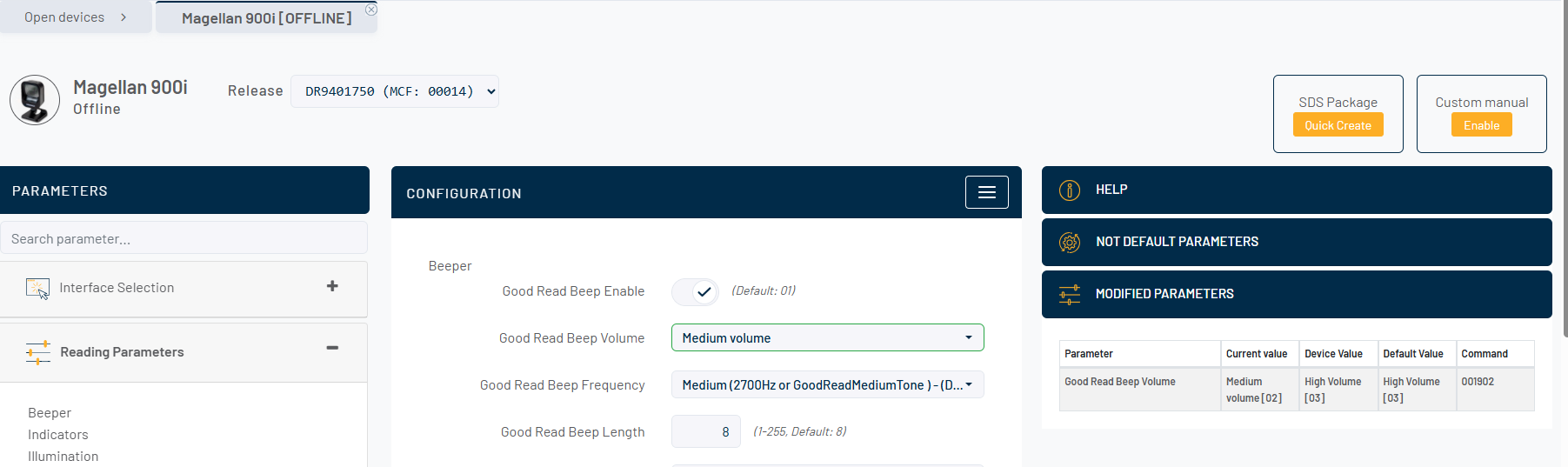
-
Select Custom Configuration File in the sidebar, then click Export. Aladdin exports the configuration shown on this page.
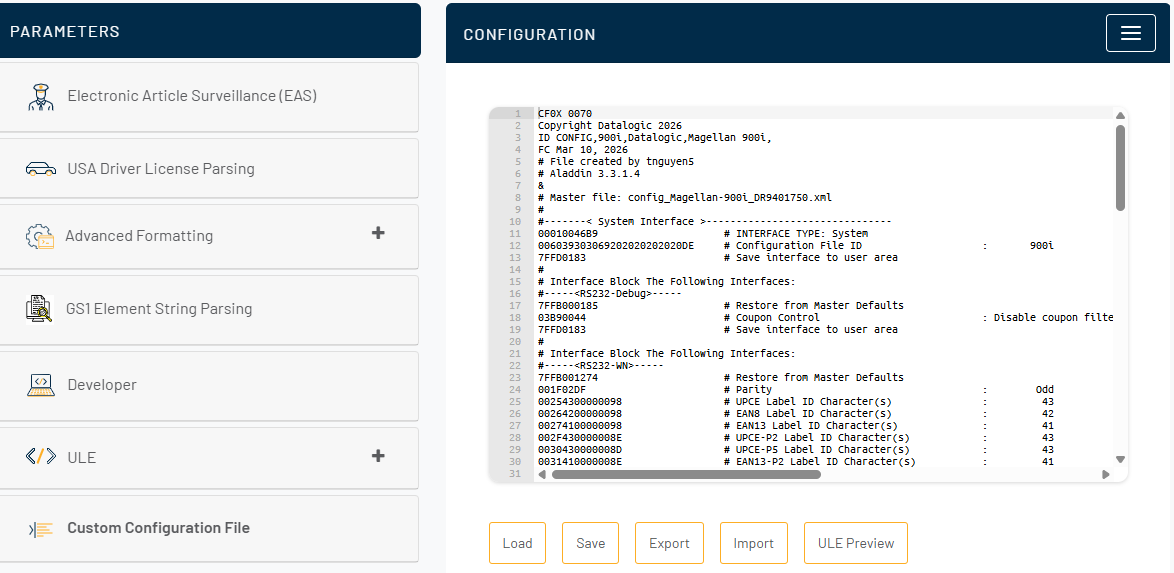
-
Click Save to store the current configuration in the configuration file.
Step 2: Create the SDS package
Follow these steps to create the SDS package on the Aladdin application.
-
Click SDS PACKAGE in the Aladdin header to open the SDS package generation page.

-
Enter the device model.
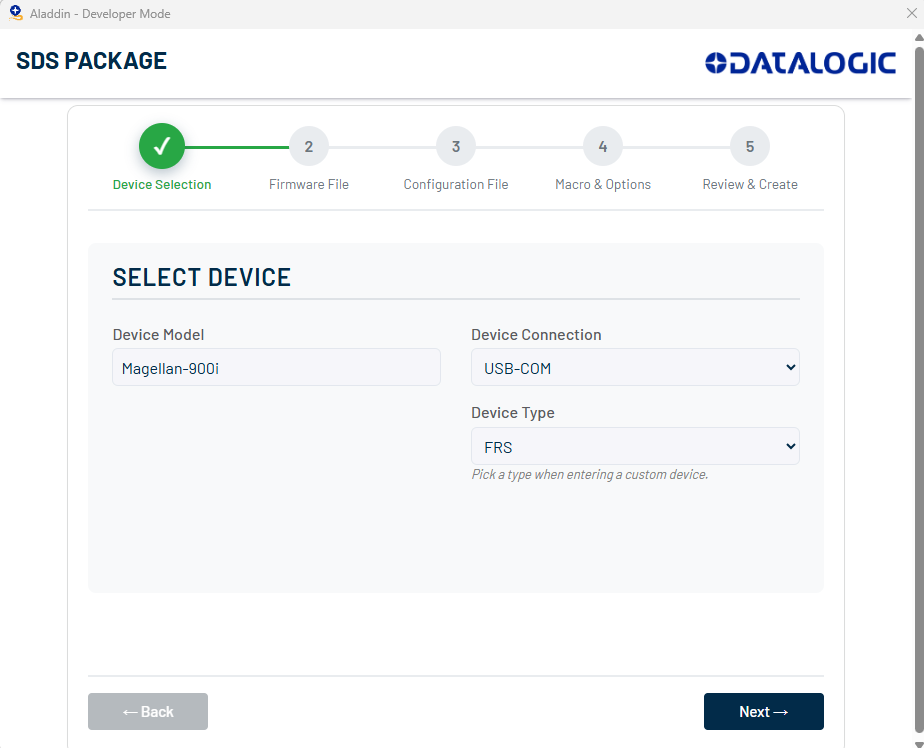
-
Select the scanner firmware (only if you want to update the scanner firmware).
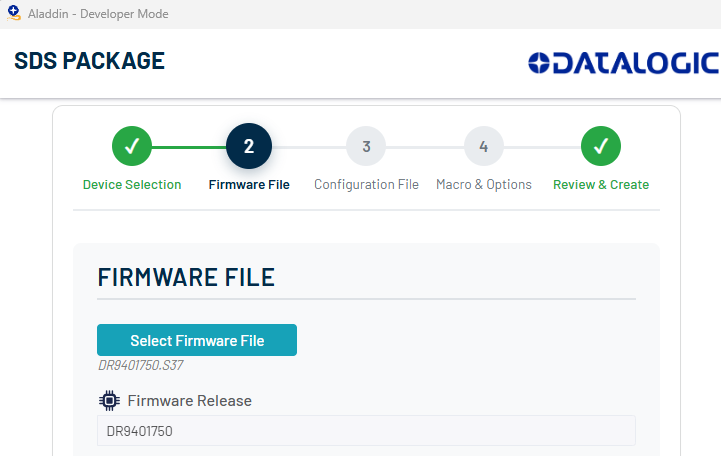
-
Select the configuration file you created in the previous step (only if you want to apply a new configuration to the scanner).
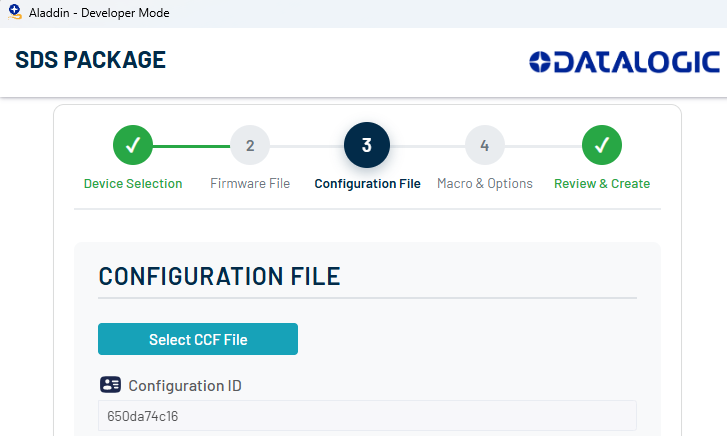
-
Go to the final page, then click Create SDS Package to save the package.
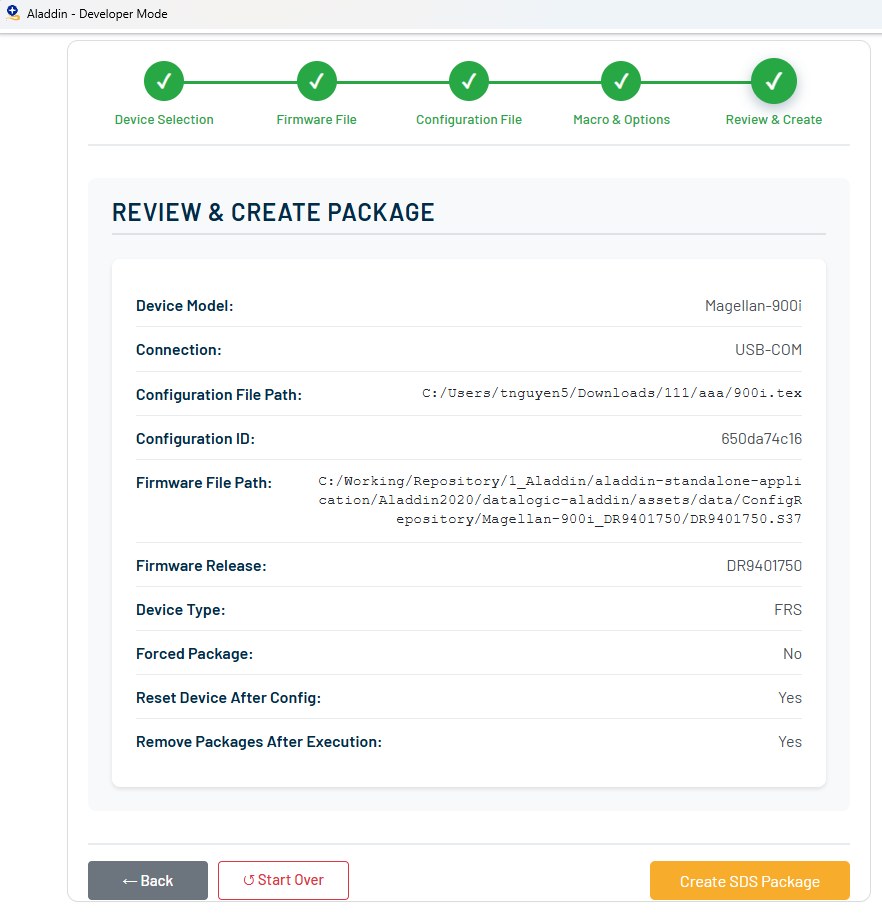
-
The package can then be applied to the scanners from the Configurations Page of Datalogic Connect.
Remember to restart AladdinSDS service if you previously stopped the service.