Enroll FRS/HHS device on Datalogic Connect
Supported Devices
For a complete list of all supported devices including Fixed Retail Scanners, Handheld Scanners and their available commands, see the Supported Devices page.
Install Aladdin SDS
Before installing AladdinSDS version 1.1.2 or later, make sure to uninstall any AladdinSDS version lower than 1.1.2 and the Device Integration Gateway (DIG) if present on the machine. Leaving old versions installed may cause conflicts, duplicate device registrations, or unexpected behaviour.
Based on the OS version, follow the installation and configuration steps to run the Aladdin SDS.
Be sure to set the proper IoT Edge IP address in the config.toml file:
host = "localhost"
Connect the Device to the POS system
To register the device on the Datalogic Connect platform, the user has to physically connect the device to the POS system (or the corresponding industrial PC) on which Aladdin SDS runs.
Once the device is recognized by the POS system, it will be available in the Customer's Organization.
For example:
- Serial Number: New Device GD4600 with its own S/N G26A20974
- Organization: Datalogic with Licenses
- Location: Solution Lab / Emilia Romagna
The user has to connect physically the device to the POS, and as expected, this is enough to see the device in the list of the Organization "To be approved":
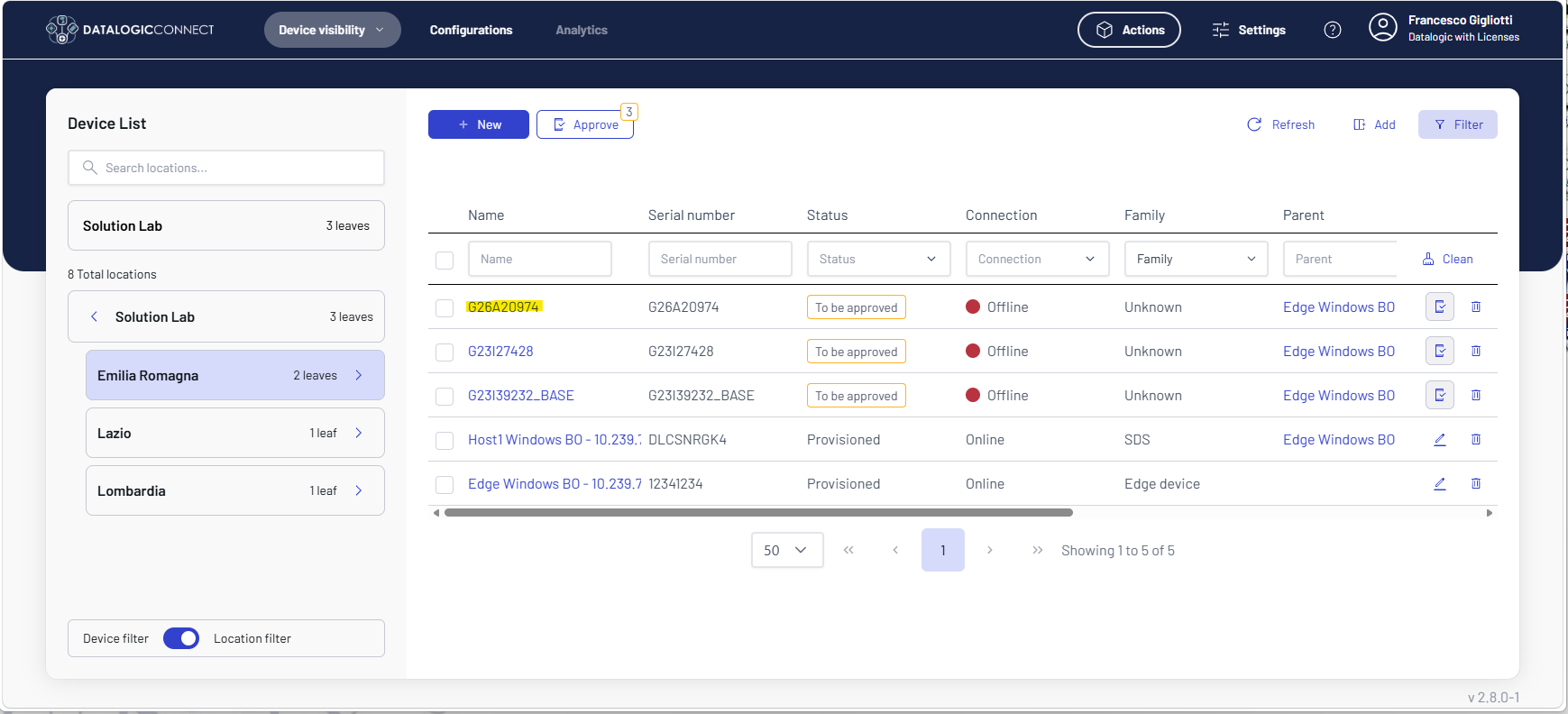
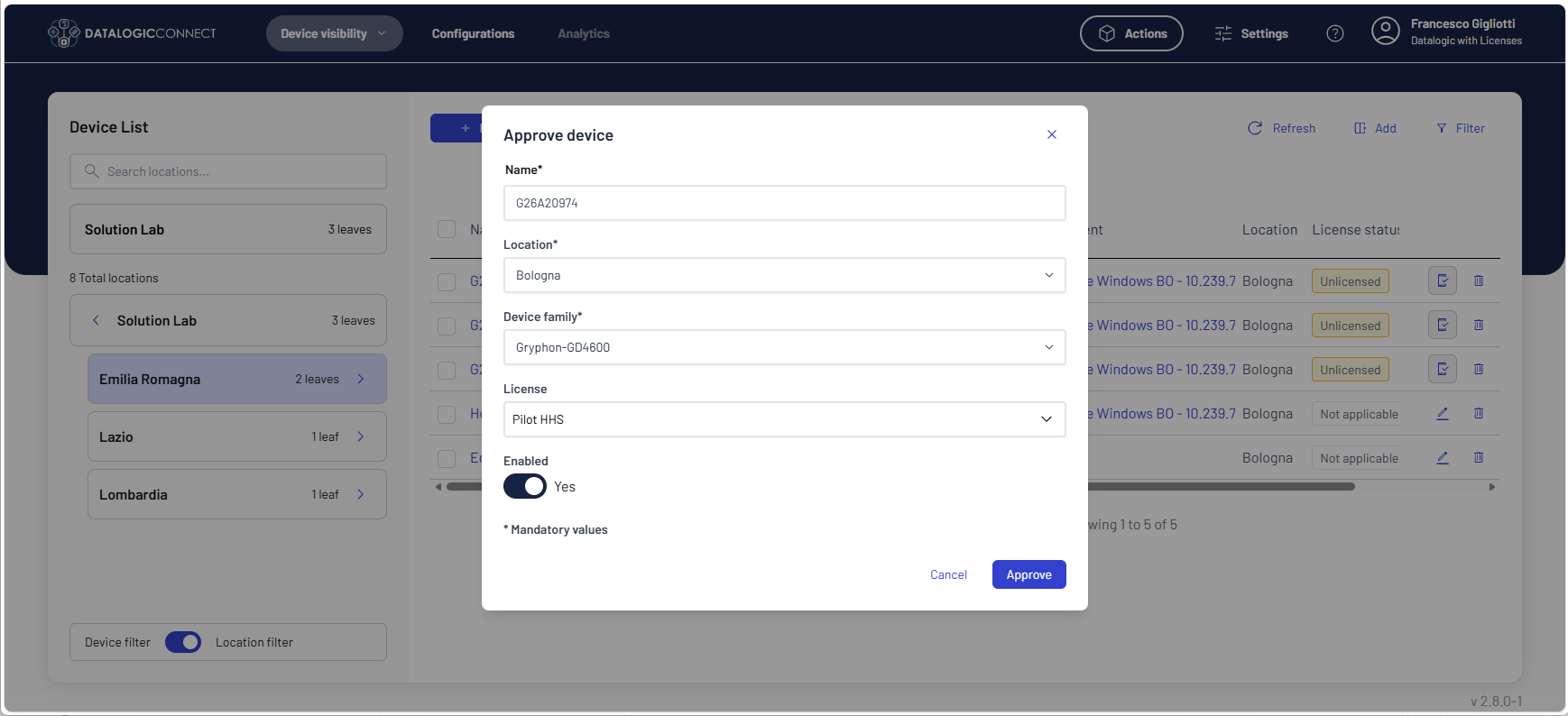
Clicking the "Approve" button (on the right side of the row) opens the Approve device window:
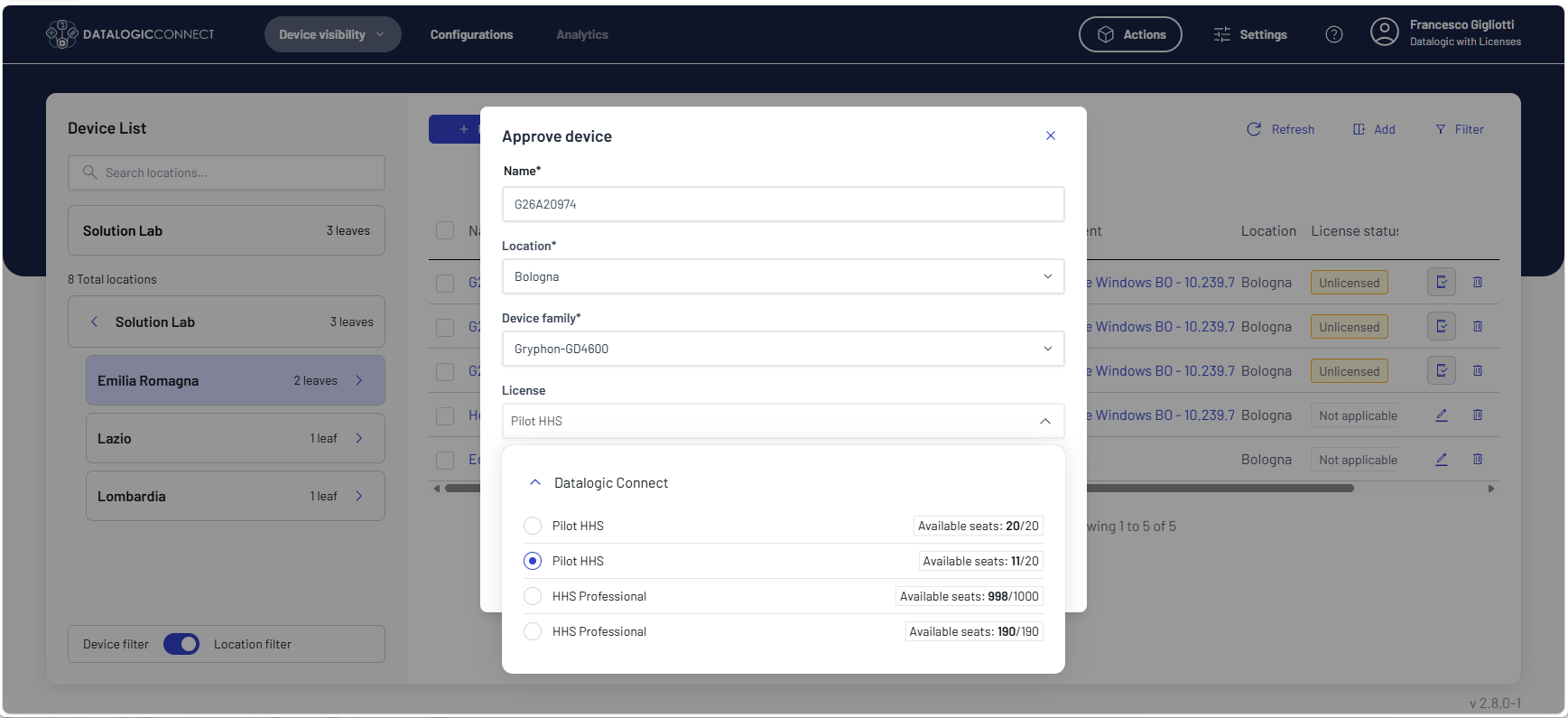
In this window, the user can:
- Give a Name to the device
- Define the Location
- Assign the device to the proper Family
- Assign the proper License
Remember to Enable the device before approving it.
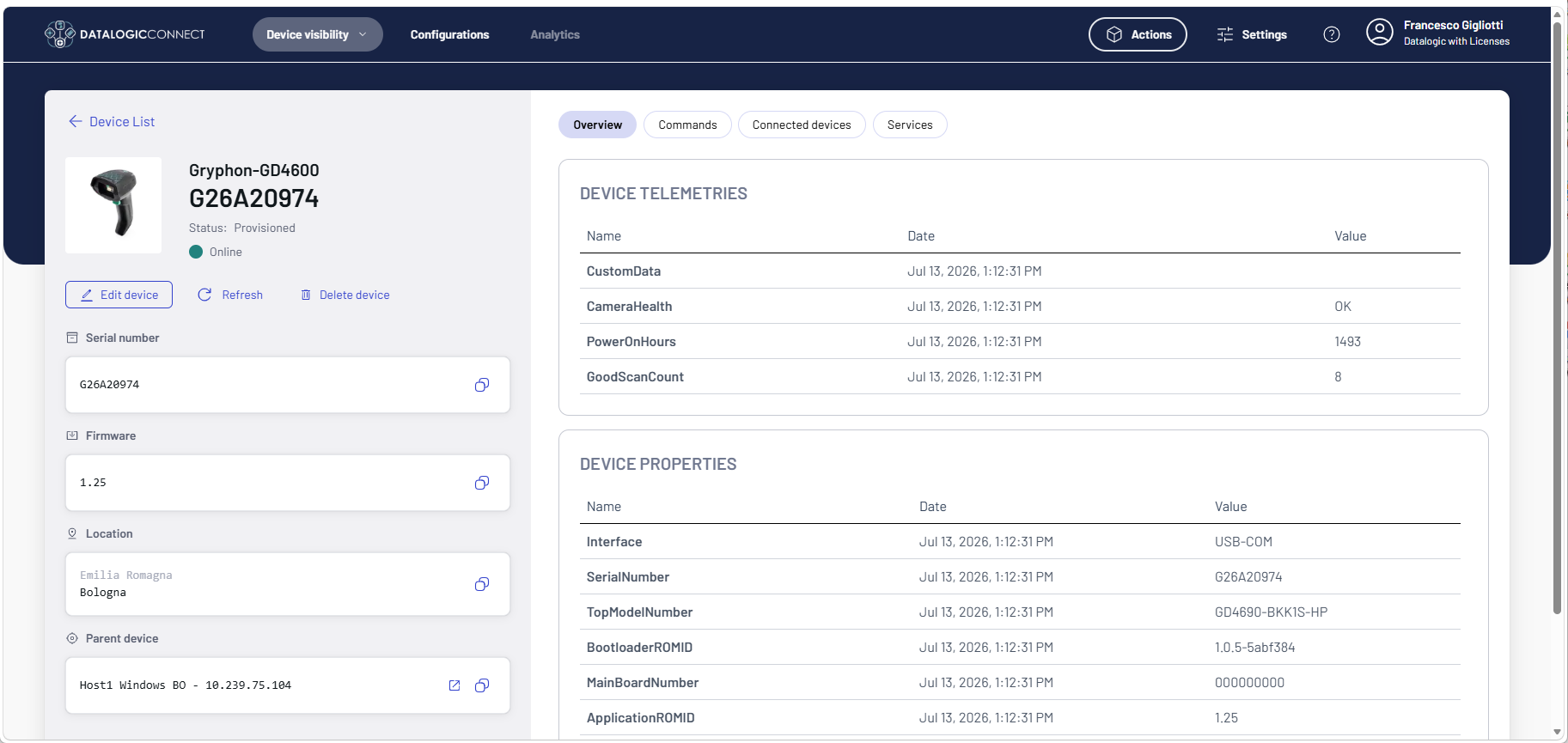
After at least one minute, the device will automatically connect to the platform, changing the connection status from Offline to Online and the device status to Provisioned, and reporting device information and telemetry data on the device details page, as in the example below: