Remote Control
This feature is supported only on Datalogic mobile computers with a Premium license.
The Remot Control feature allows to access, view, and control deployed mobile computers. Key capabilities include real-time screen sharing, remote device control, file explorer access, and clipboard management, as well as task monitoring, volume control, screenshot capture, and custom command execution.
To enable the Remote Control feature follow the steps below:
-
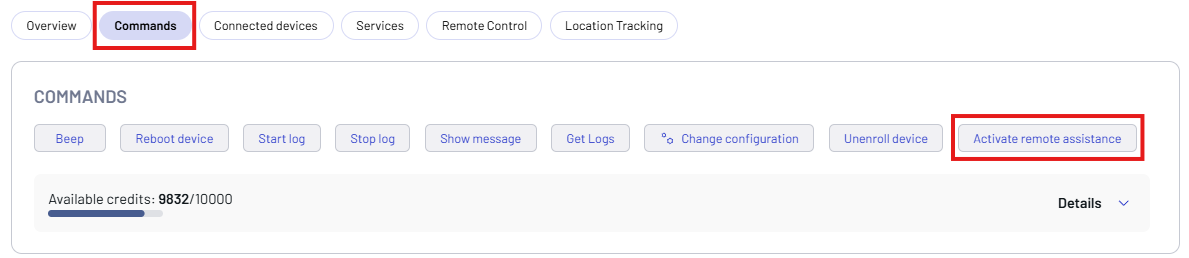
Click the Activate remote assistance button on the Commands tab.
-
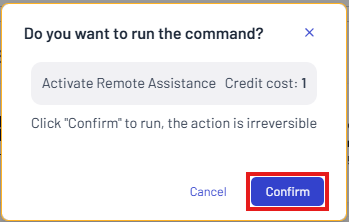
Click Confirm.
-
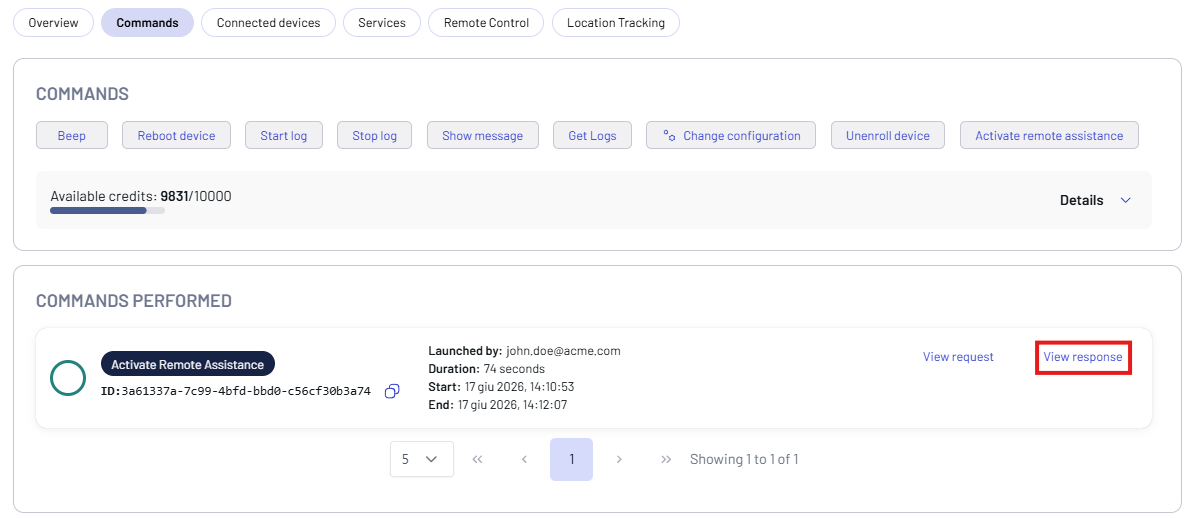
Click View response to display a report of the command.
-
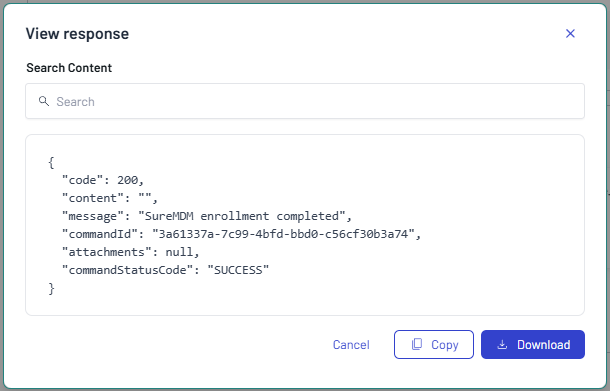
Click Copy to copy the report, or click Download to download it.
Remote Control Screen
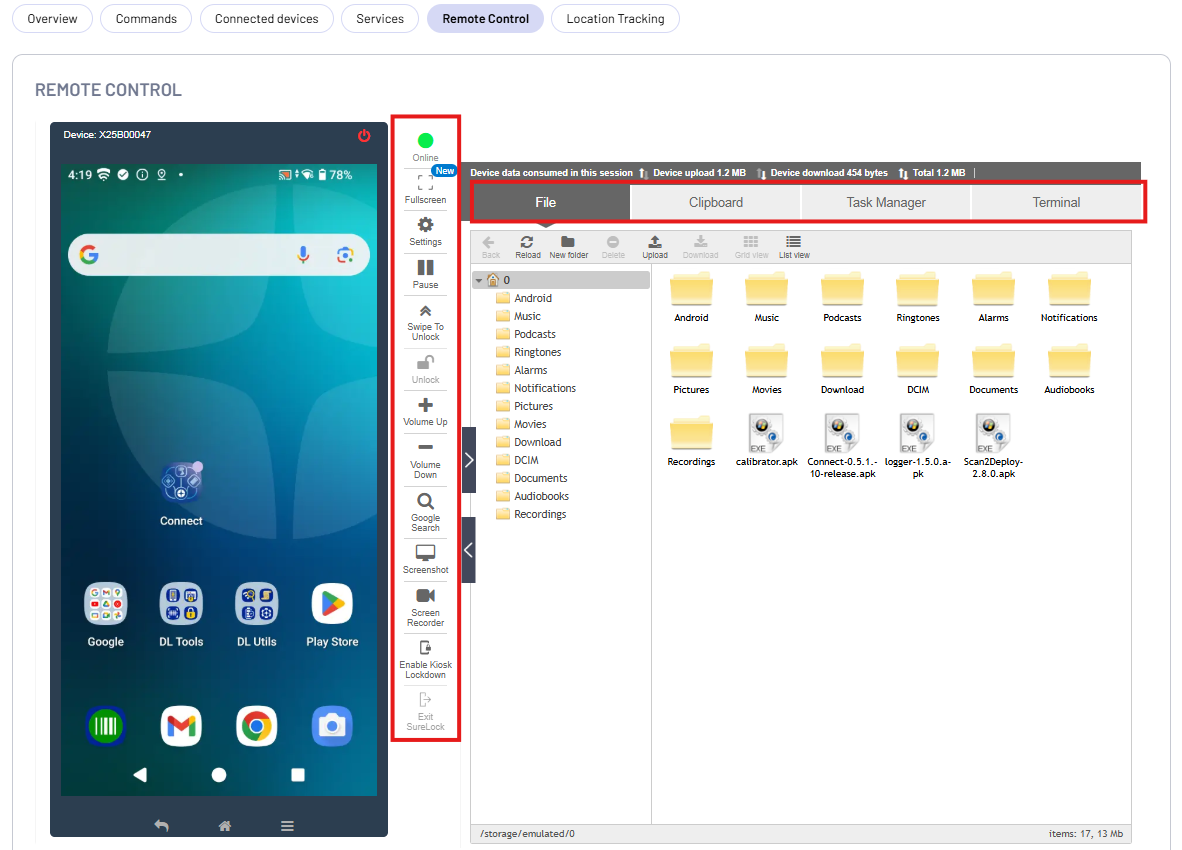
The remote screen is displayed on the left side of the Remote Control screen. The right side of the screen has the following options:
- File – Access files stored on the internal storage of the end user’s device.
- Clipboard – Send, read, and clear text from device clipboard.
- Task Manager – Monitor processes with CPU Usage, RAM Usage, and applications running on the remote device.
- Terminal - Use the command lines to send commands and run scripts on Android devices.
The Remote Control Bar provides real-time session management utilities, display optimization settings, device hardware simulations, and dedicated security controls for managing deployed mobile computers.
- Online (Device Status): Displays the live connection state of the mobile computer. It confirms if the device is actively communicating with the console.
- Fullscreen: Expands the remote session window to full-screen mode for better visibility and precise troubleshooting.
- Settings: Opens configuration options to rotate the screen view or adjust screenshot image quality.
- Play / Pause: Starts or freezes the real-time screen sharing action. Pausing the stream maintains the session connection while stopping live data consumption.
- Swipe to Unlock: Simulates a physical swipe gesture on the remote display screen to bypass the active lock screen layer.
- Unlock: Remotely wakes up the managed mobile computer and unlocks the interface directly from the console interface.
- Volume Up / Down: Remotely increase or decrease the volume levels of the device.
- Google Search: Opens a dedicated text lookup field to scan and locate specific words, errors, or phrases within the active remote display window.
- Screenshot: Capture and download screenshot in .webp format.
- Screen Recorder: Records real-time session video clips of the device screen.
- Enable Kiosk Lockdown: Remotely triggers and applies the SureLock profile layer on the target mobile computer, converting it into a locked down multi-app or single-app enterprise kiosk.
- Exit SureLock: Disables the active lockdown environment from the console, restoring standard operating system layout access to the technician for deeper configuration changes.