Add a New Device
This section explains how to add a new device to the Datalogic Connect web application.
Click New to add a device and fill in the device details.
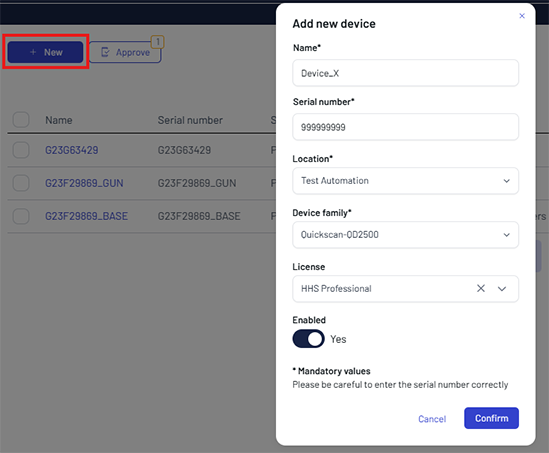
After you fill in the details, click Confirm to add the device to the platform.
Device Details
-
Name - enter a name for the device
-
Serial Number - enter the device serial number
-
Location - select the location from the dropdown list
-
Device family - select the device family from the dropdown list
-
License - select the license type (optional)
An unlicensed device can be approved, but it is unable to function.
Add an Edge Device
To add an IoT Edge device to the Datalogic Connect web application:
-
Click New to add a device and fill in the device details.
-
In the Device family dropdown, select Edge Device or the appropriate IoT Edge device type.
-
Fill in the required fields:
- Name - enter a name for your edge device
- Serial Number - enter the device serial number
- Location - select the location from the dropdown list
- License - select the license type (if applicable)
-
Click Confirm to add the edge device to the platform.
After the device is created, you can retrieve the device credentials (including Scope ID, Serial Number, and Primary Key) from the Device Overview page by clicking the Get Credentials button. These credentials are required to configure the edge device during installation.