Windows
This guide covers the installation and configuration of Aladdin SDS on Windows systems. You will learn how to install the application as a Windows Service and configure it to communicate with your IoT Edge server.
Run as a Windows Service
Follow these steps to run Aladdin SDS as a Windows Service:
-
Download the
.msiinstaller from the Aladdin SDS Releases page. -
Run the installer and follow the installation wizard. Downloading the latest available release is recommended.
-
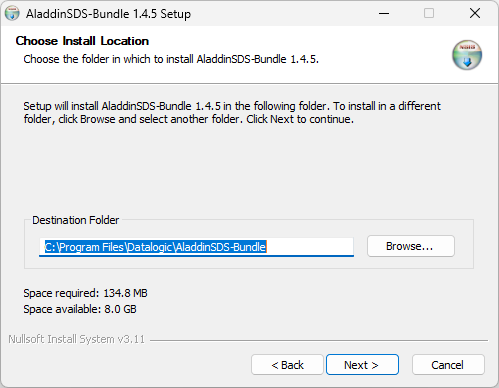
Select the installation folder for AladdinSDS:
-
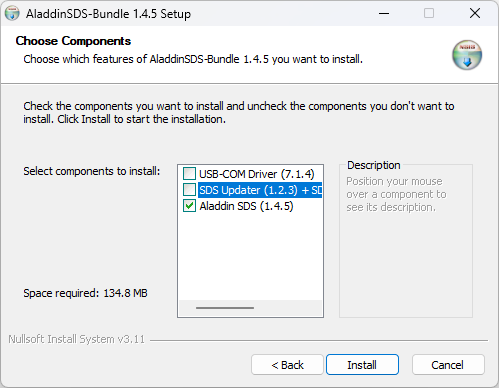
Before running the installation, be sure to deselect the SDS Updater component:
-
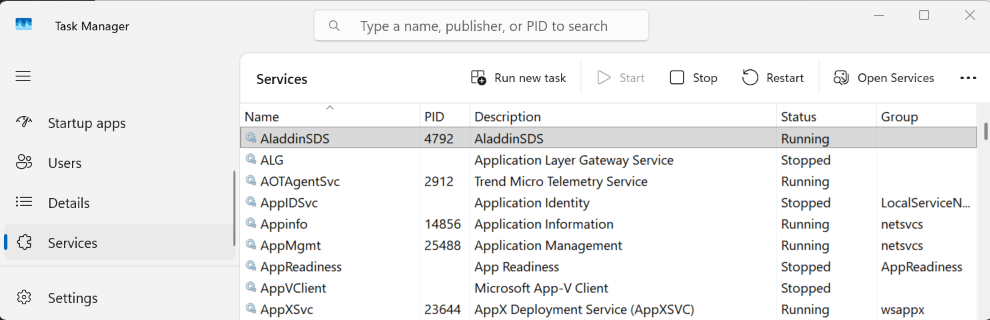
At the end of the installation, check if AladdinSDS is running in Task Manager:
-
To enable the communication with the IoT Edge Gateway, open the configuration folder (see the Windows reference for the exact path):
C:\ProgramData\Datalogic\AladdinSDSEdit the
config.tomlfile, replacinglocalhostwith the IoT Edge Gateway IP address:# ----------------------------------------------------------------------------# [edge] - Edge Gateway Configuration# ----------------------------------------------------------------------------# Settings for communicating with the Datalogic edge gateway.[edge]# host - Edge gateway hostname or IP address# Network address of the edge gateway for cloud connectivity.# Values:# - "localhost": Gateway running on same machine (development/testing)# - IP address: Remote gateway (e.g., "192.168.1.100")# - Hostname: DNS-resolvable name (e.g., "edge-gateway.local")host = "localhost"tipAlways back up the
config.tomlfile before making changes, as an incorrect configuration may prevent the service from starting. -
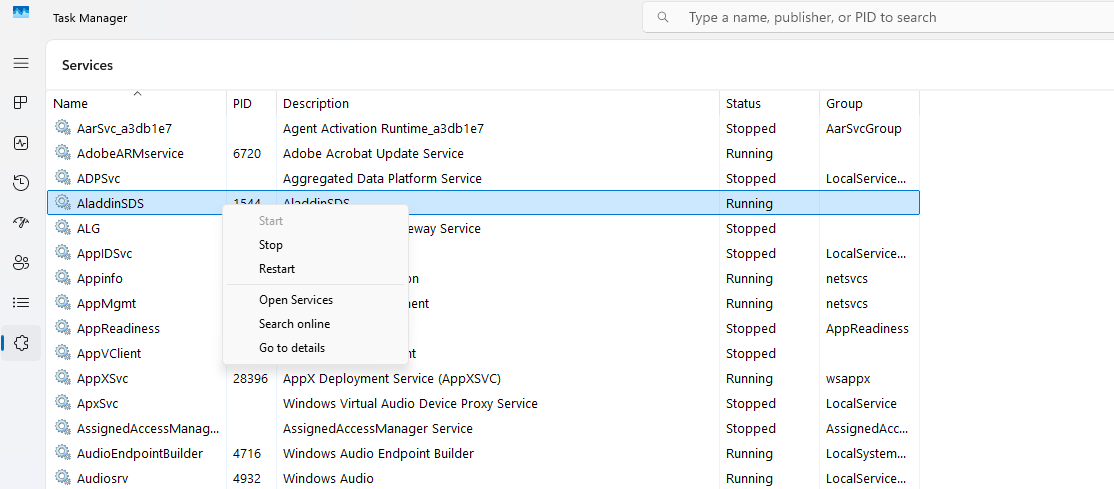
Restart the AladdinSDS service to apply the change.
You can find the OpenAPI documentation at http://localhost:9000/docs.
By default the API listens on localhost only. To reach the OpenAPI documentation from another machine, set host = "0.0.0.0" in the [http] section of config.toml and open http://<pos-ip-address>:9000/docs; use https only when tlsEnabled = true. See HTTP API Server.