Approval Rules
Approval rules approve newly detected devices automatically and assign them one or more licenses, by device family and location. With a rule in place, known device types no longer wait for manual approval.
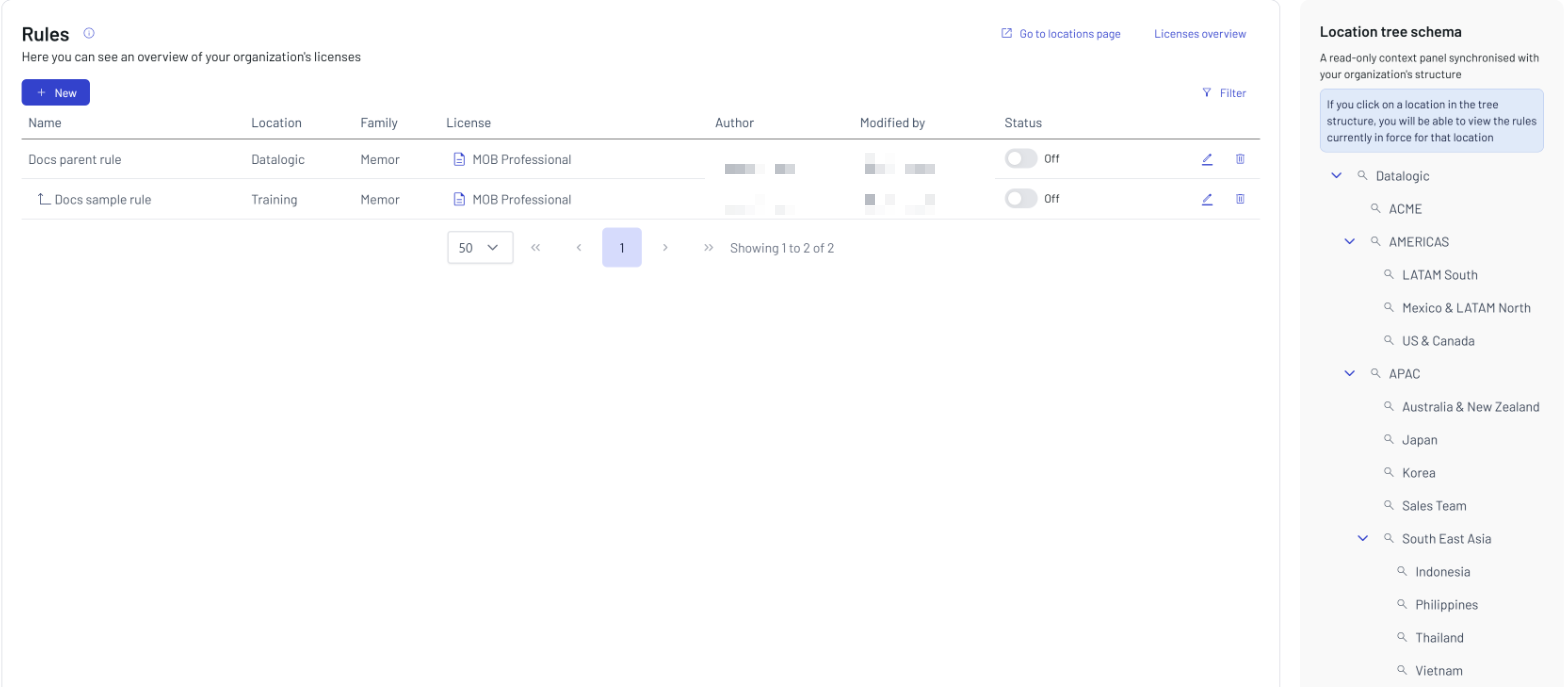
Click Rules in the Settings menu to open the page. It lists the rules of your organization's location tree, and shows the Location tree schema on the right.
Click the info button next to the Rules title to open Info about rules, a short summary of how rules are inherited and who can edit them.
How Approval Rules Work
When Datalogic Connect detects a new device, it evaluates the approval rules before the device appears in the Device List:
- If a rule applies and every license the rule requires has a free seat, the device is approved and the licenses are assigned.
- If even one seat is missing, no license is consumed and the device goes to To be approved, where you approve it by hand.
- If no rule applies, the device goes to To be approved.
For the device statuses, see Device List.
In manual approval the license is optional. In a rule, at least one license is mandatory whenever the device family has licenses. Where the family offers add-on licenses, you can add them to the rule; an add-on may depend on the primary license. For the license types, see Licenses.
Rules are not retroactive. Creating or changing a rule does not change the devices already registered or already in To be approved: change those one by one.
Create a Rule
- Click New.
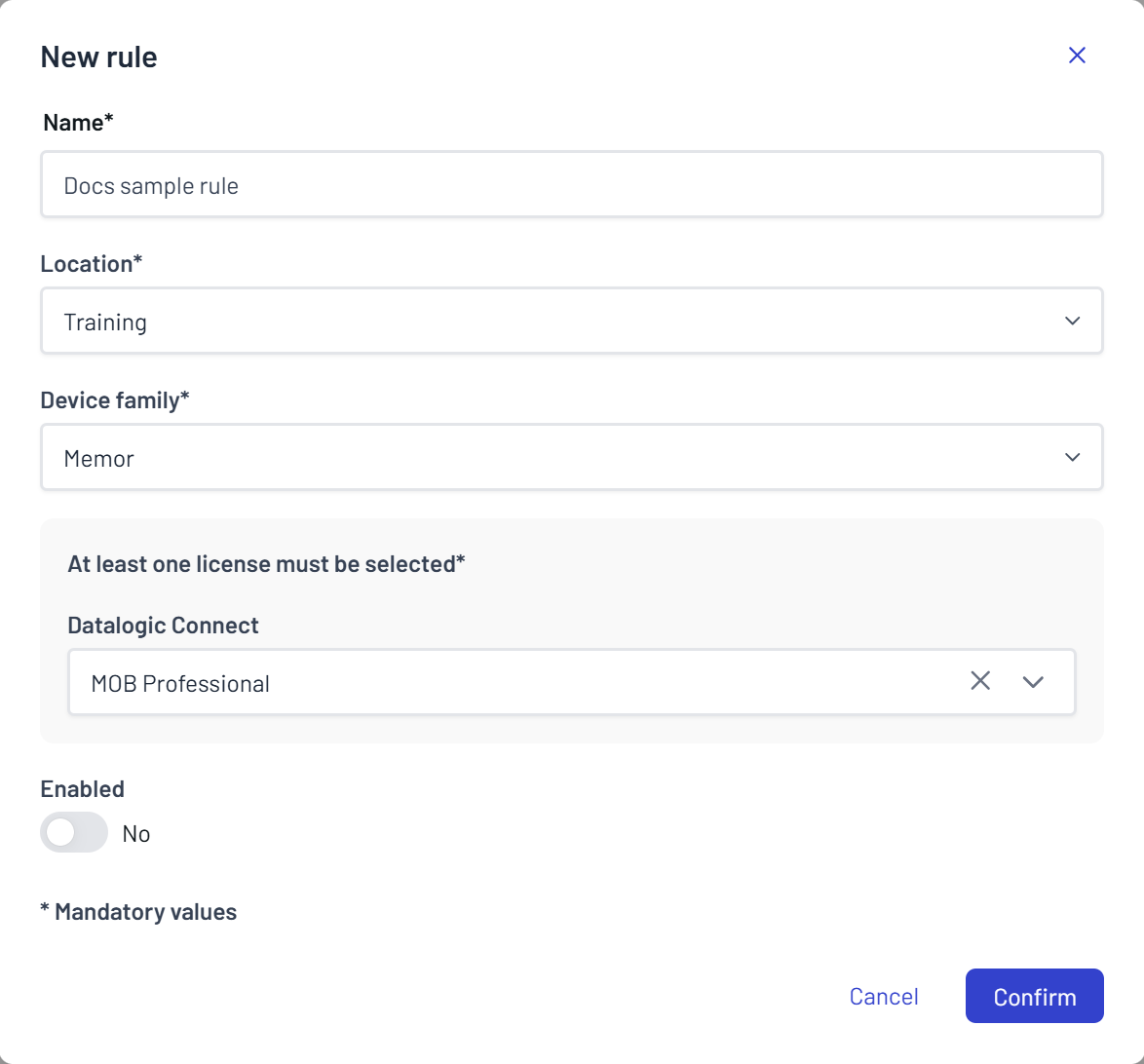
- Enter the following mandatory data:
- Name - from 4 to 50 characters.
- Location - the location the rule applies to, together with its child locations. Expand the tree or type in the search box to find it.
- Device family - a whole family, such as Memor, or a single model inside it, such as Memor 12. Expand the family to see its models.
- Licenses - after you select the device family, the modal shows the licenses available for it, grouped by product, with the available seats next to each license. Select at least one. For a family without licenses, such as Host, no license is required.
- Set Enabled to Yes to make the rule active as soon as it is created, or to No to create it disabled.
- Click Confirm. A message confirms that the rule is created.
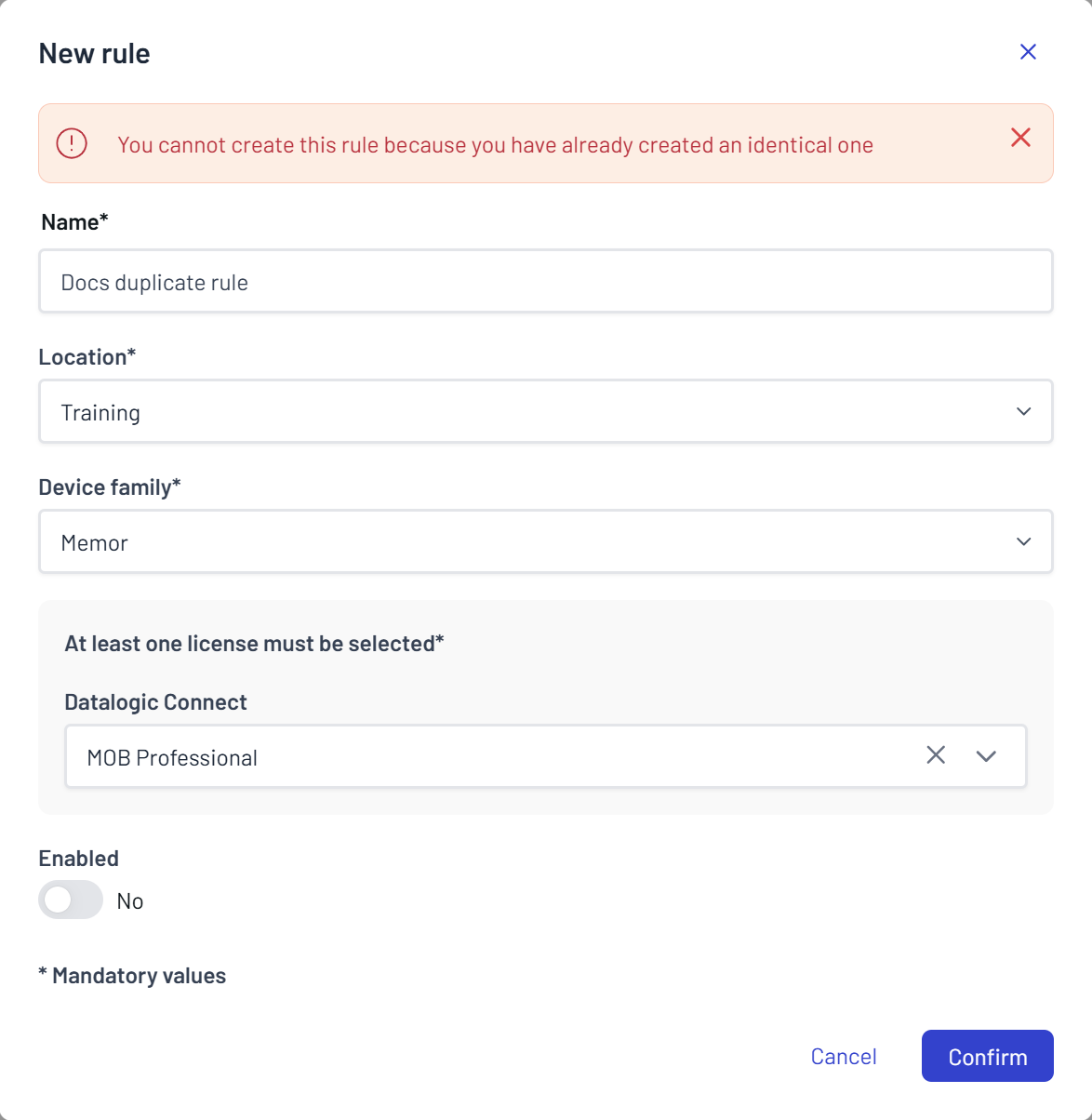
Only one rule can exist for the same location and device family, because two rules on the same level could contradict each other. If you click Confirm on a second one, the modal shows "You cannot create this rule because you have already created an identical one" and the rule is not created. Edit the existing rule instead.
An organization can have up to 500 approval rules.
Click Licenses overview to check the available seats before you create a rule. It opens a read-only list of your organization's licenses, grouped by product, with expiry date, available device seats and available credits. For the same information in full, see Licenses.
Manage Rules
The rules table shows the following information for each rule:
- Name - the name of the rule. A rule created on a child location is indented under the rule of its parent location.
- Location - the location the rule applies to.
- Family - the device family or model.
- License - the licenses the rule assigns.
- Author - the user who created the rule.
- Modified by - the user who last changed the rule.
- Status - whether the rule is enabled (On) or disabled (Off).
Rules on locations above yours are read-only. The rules you can manage carry these controls:
- Status switch - enables or disables the rule, with no dialog: a short message confirms the change. While a rule is disabled, the rule of the nearest ancestor location applies.
- Pencil - opens the rule in the same modal used to create it, pre-filled. If you change the location, the rule moves to the new location: you need permission on both the old and the new location.
- Bin - deletes the rule. The "Delete this rule?" dialog warns that devices of that family will no longer be approved automatically under that location, and that the action cannot be undone. Click Confirm to delete.
Admin and Operator users can create and edit rules from their own location downwards. See Users & Roles.
Click Filter to display one filter per column: a text filter for Name and a selection for the other columns. The Location filter is a tree with checkboxes, from Root (your organization) downwards, and filters from parent to child. Author and Modified by let you search among the existing users. Click the icon at the end of the filter row to clear all the filters.
Rule Hierarchy and the Location Tree Schema
For a location and a device family, only one rule applies:
- The most specific location wins: a rule on a child location overrides the rule on its parent.
- At the same location, the most specific device family wins: a rule for a single model, such as Memor 12, overrides a rule for the whole family, such as Memor.
- Rules created on ancestor locations are inherited by every child location.
You see the rules of the locations above yours and of your own subtree, never those of sibling branches. To change the location tree itself, click Go to locations page, or see Locations.
The Location tree schema on the right is a read-only copy of your organization's location tree. Click the magnifier next to a location to open Rules active on this location:
- Without a device family, the modal lists every enabled rule that matches the selected location: the rules set there and the rules inherited from the locations above, where the lowest one overrides the others.
- Select a model in Device family to see the single rule that applies to a device of that model at that location. Clear the field to see the whole chain again.
Disabled rules do not appear in this modal. Use it to check, branch by branch, which rule governs a location.
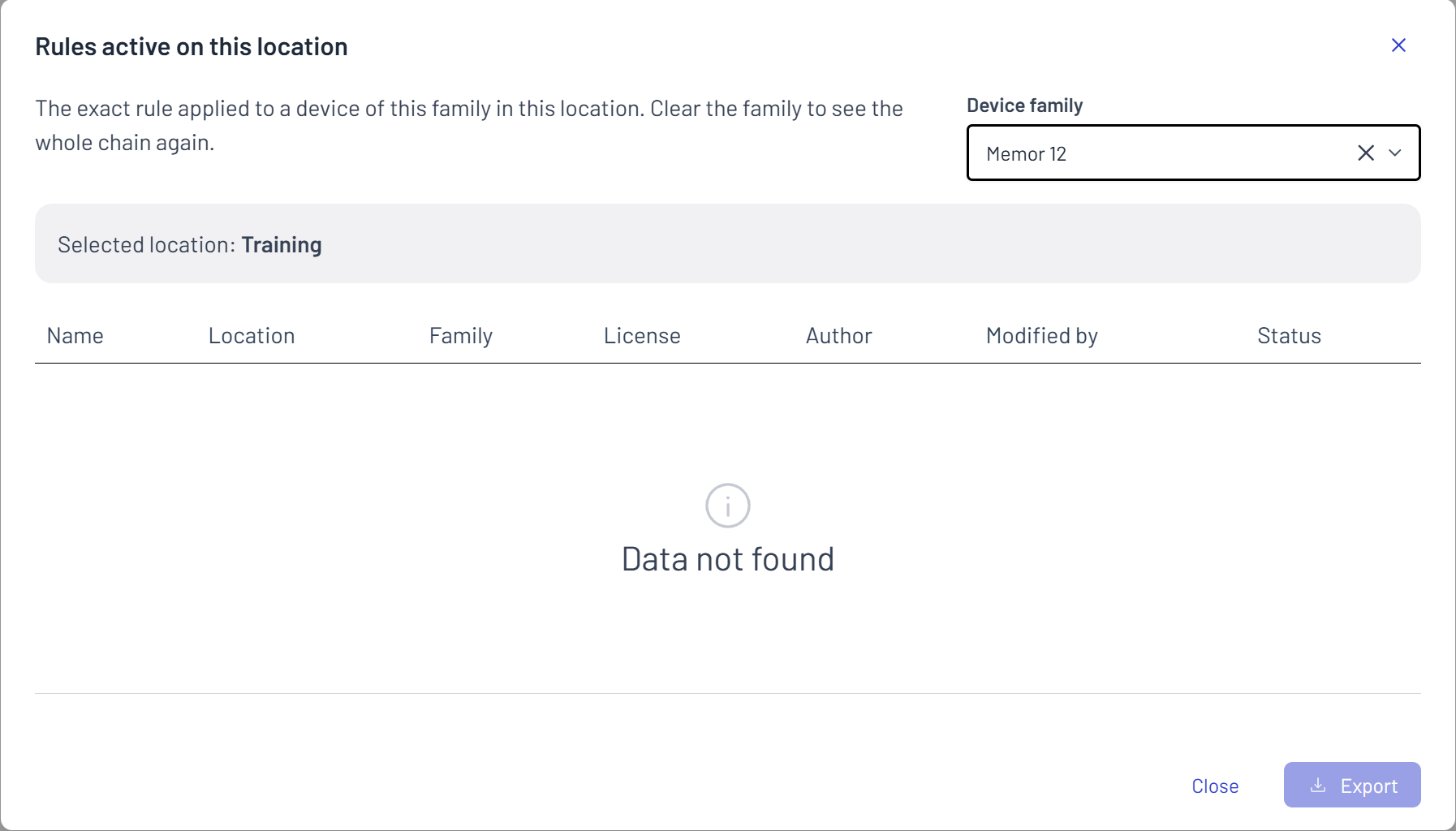
Click Export to download a summary of the rules shown for the selected location.