Device List
The Device List shows every device registered to your organization and lets you add, filter and remove devices. For supported device families, models, firmware versions, and feature availability, see Supported Devices.
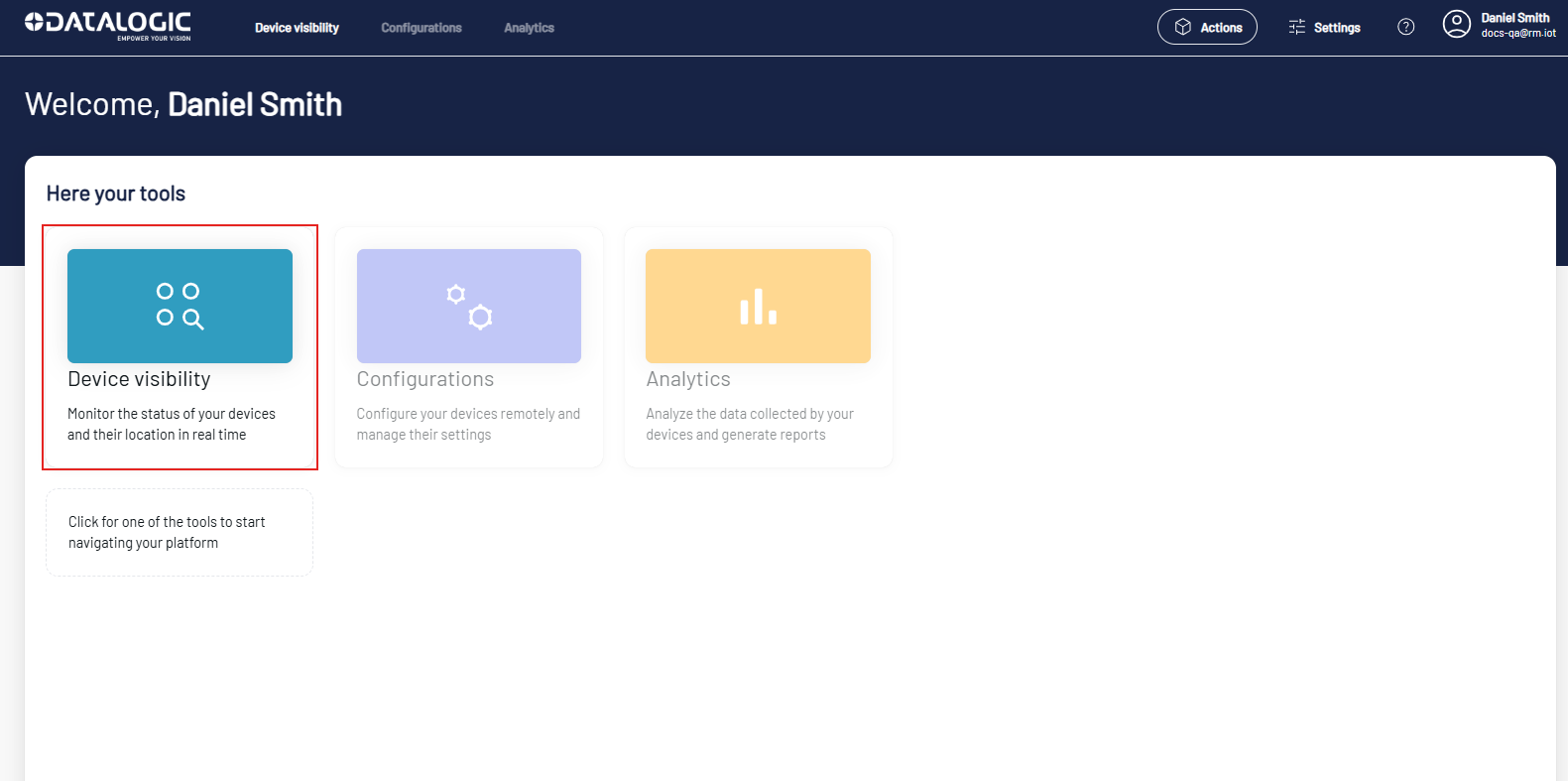
From the Home page, click the Device Visibility button, or select Device List from the Device visibility drop-down menu.
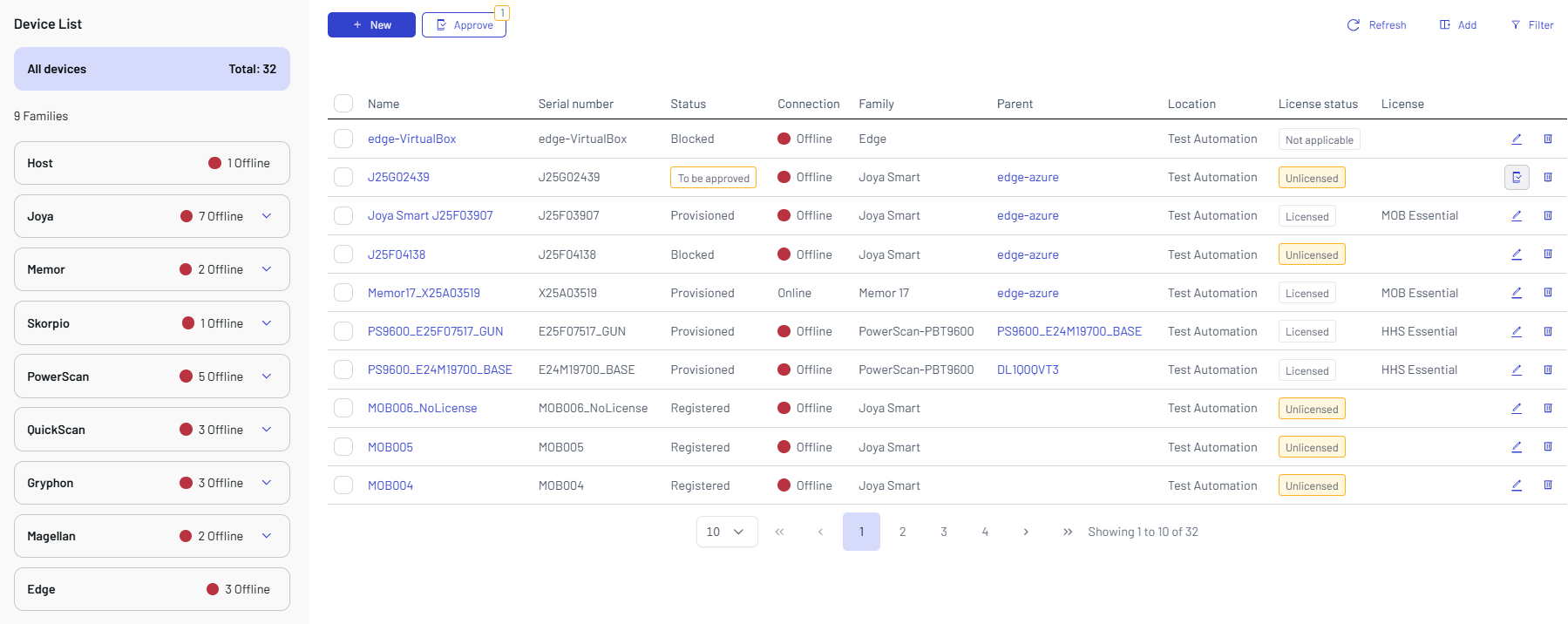
The page shows all devices registered to the platform.
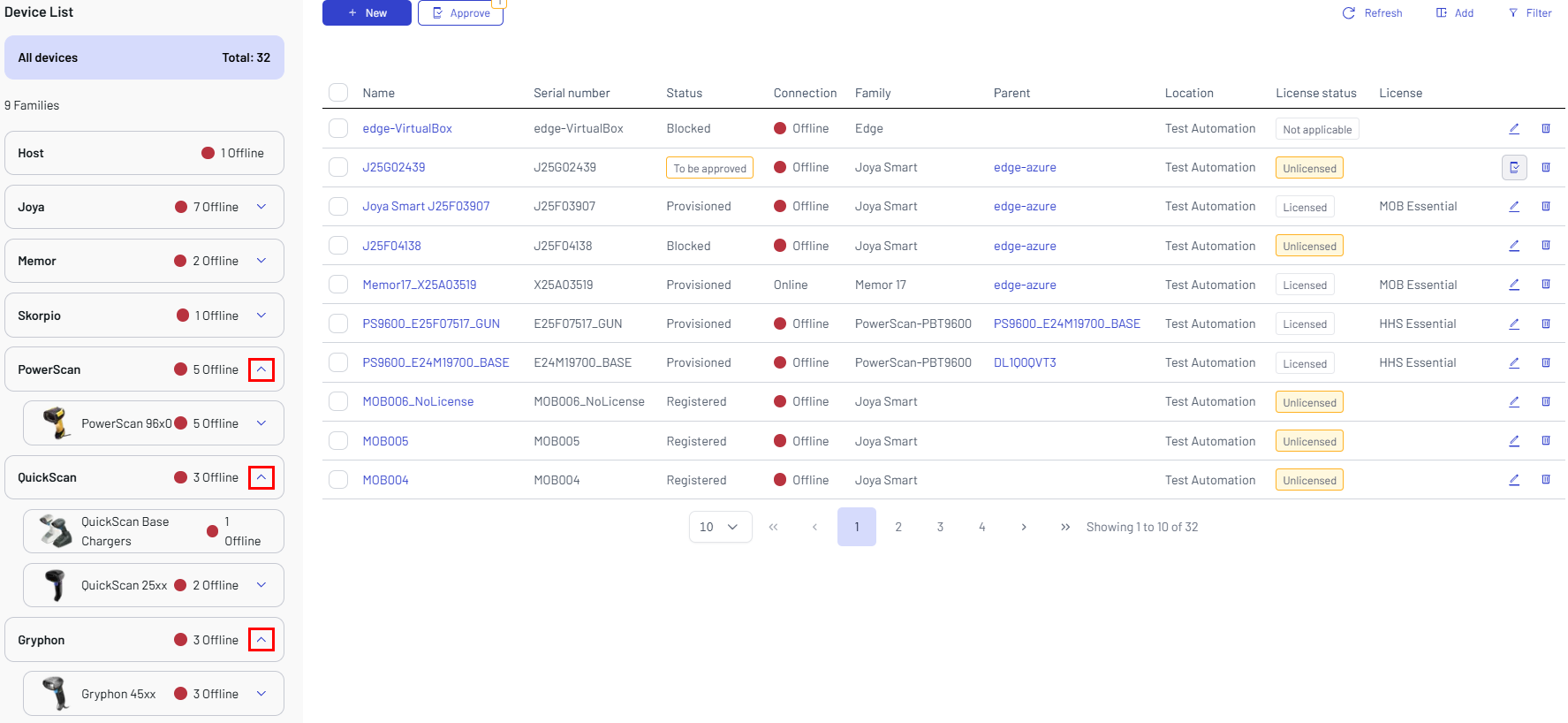
The first list on the left shows the devices arranged by product families. Click the arrow to expand a family group and display sub-families.
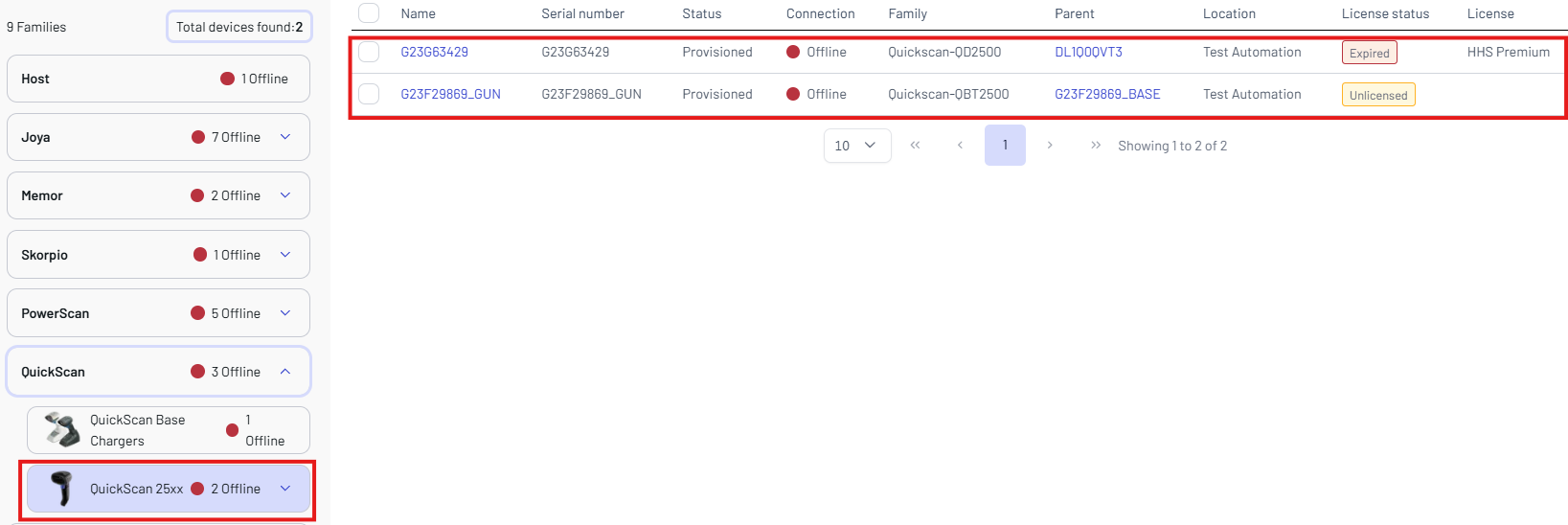
Click a sub-family to filter the related devices in the device visibility table.
To filter devices by location, click the Location filter button. Use the search bar to find specific locations.
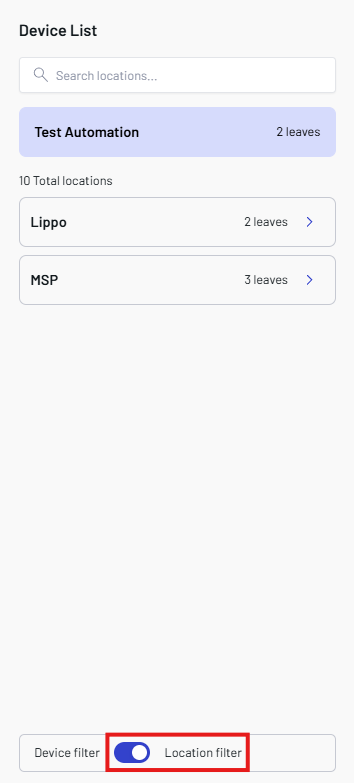
Expand a location to view its child locations.

The device visibility table shows the following information for each individual device:
- Name - the name assigned to the device.
- Serial Number - the device serial number.
- Status - the device status. The available values are:
- To be approved - the device has been added to the platform and is waiting for approval, manually or through approval rules.
- Registered - the device is registered and enabled to receive messages.
- Blocked - the device is blocked and unable to function.
- Provisioned - the device has completed provisioning and can exchange data with Datalogic Connect.
- Connection - the device connection status (Online or Offline).
- Family - the device sub-family.
- Parent - the uplink device that it is connected to.
- Location - the location you assigned to the device.
- License status - the device's associated license status. The available values are:
- Licensed
- Unlicensed
- Expired
- Not applicable
- License - the device's associated license type. Refer to Licenses for more details.
Click the delete icon on the right to remove the selected device.
Add a New Device
This section explains how to add a new device to the Datalogic Connect web application.
Click New to add a device and fill in the device details.
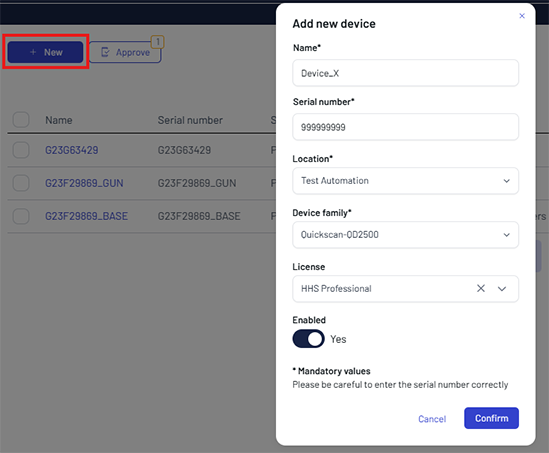
After you fill in the details, click Confirm to add the device to the platform.
Device Details
- Name - enter a name for the device.
- Serial Number - enter the device serial number.
- Location - select the location from the dropdown list.
- Device family - select the device family from the dropdown list.
- License - select the license type (optional).
An unlicensed device can be approved, but it is unable to function.
To add an IoT Edge gateway, which needs additional fields, see Add an IoT Edge Gateway.
Filter Settings
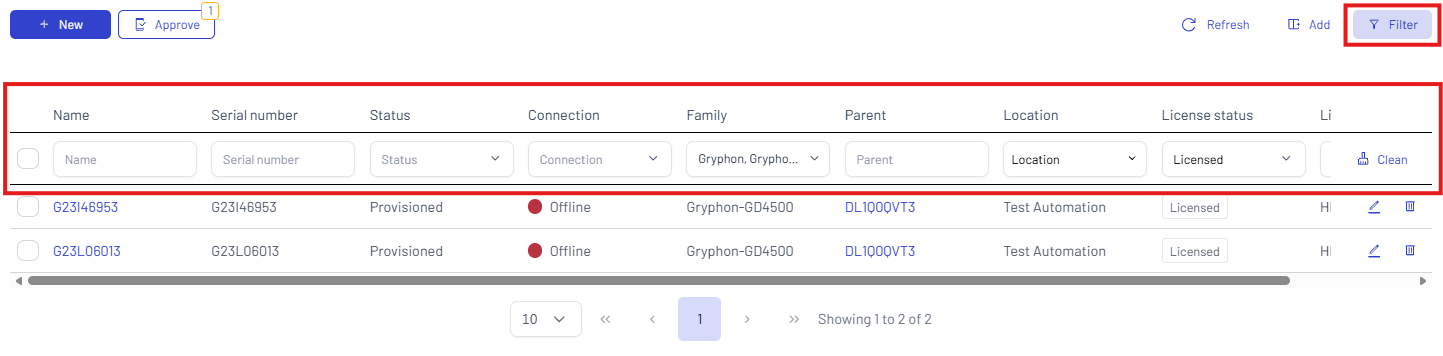
Click the Filter button to apply the filters to the table. You can filter your search by Name, Serial number, Status, Family (you can select one or more families or sub-families), Parent, Location, License status, and License.
To clear the selections, click Clean.
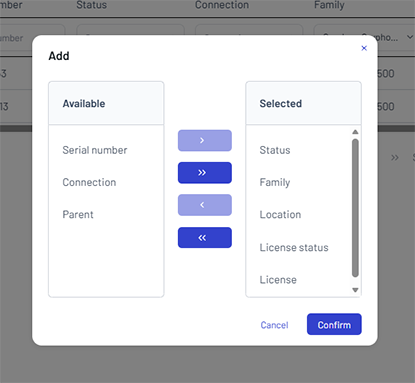
Click the Add button to show or hide one or more items.
Device Page
The Device page shows the details of a single device, organized in tabs.
The Commands tab and the tabs available only for some families are described on the family pages: Edge Devices, Host Devices, Mobile Computers, Handheld Scanners and Fixed Retail Scanners.
Overview
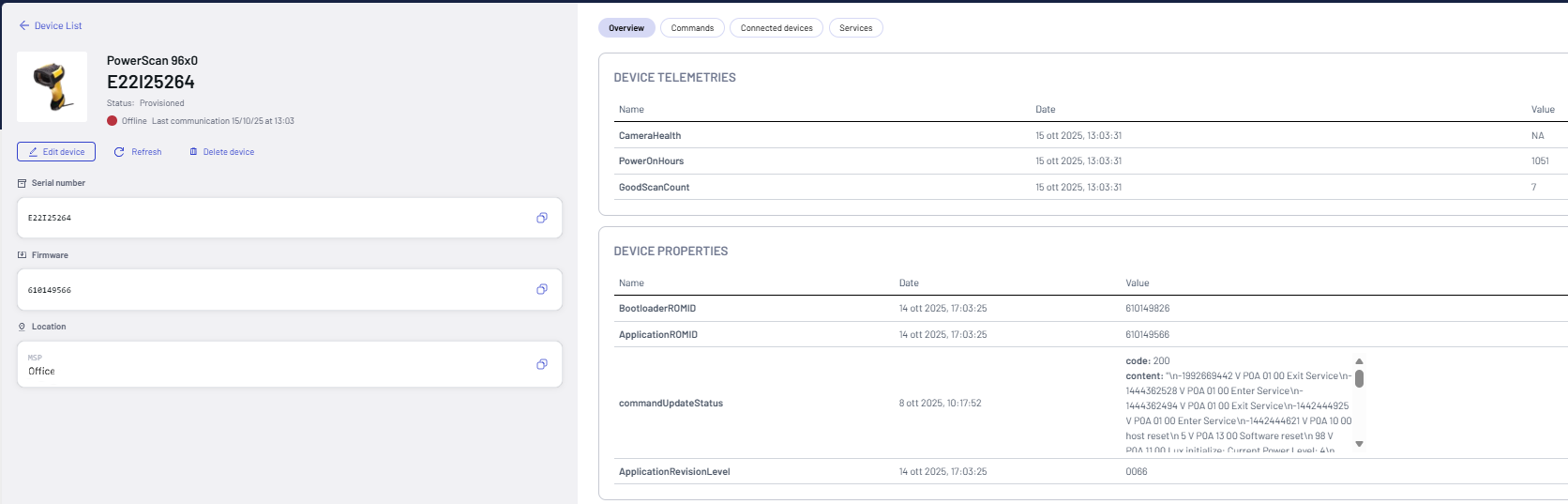
The Overview tab shows the status, telemetry and properties of the selected device.
On this tab, you can:
- View Device Properties: check the status, telemetry and configuration reported by the device.
- Monitor Activity: see the latest data the device reported.
Connected Devices
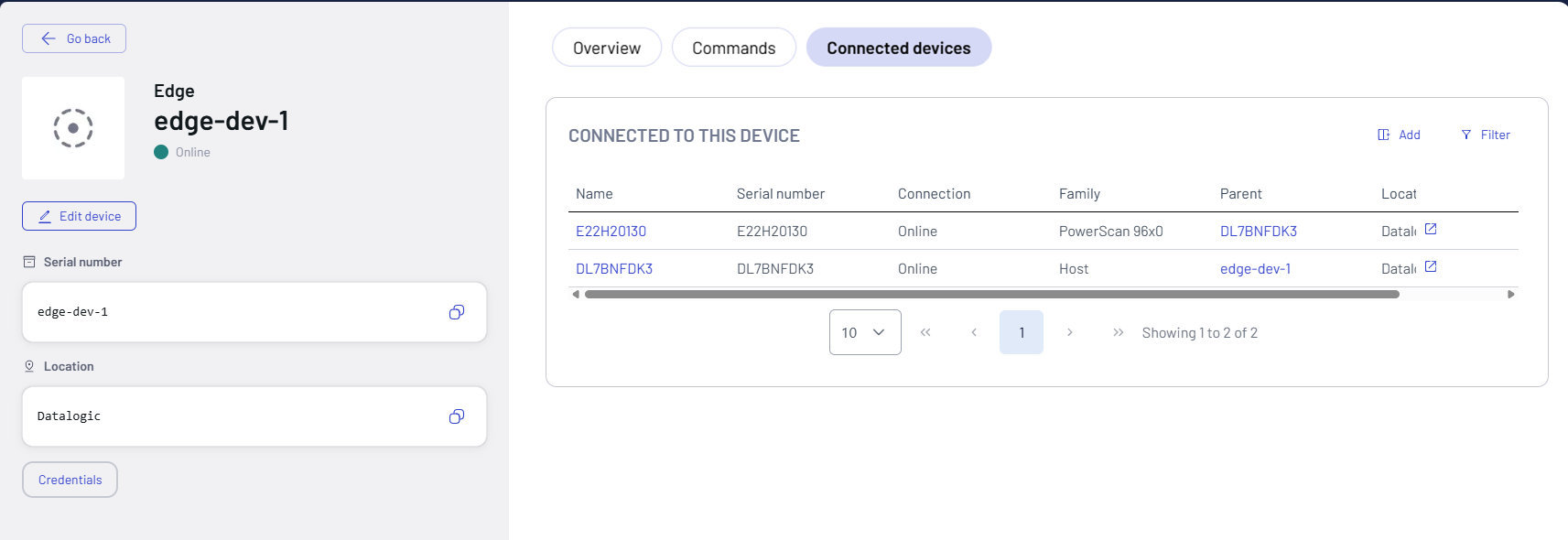
The Connected Devices tab lists the devices connected to the selected device, such as the devices behind an IoT Edge gateway or a host. Use it to understand the device topology.
On this tab, you can:
- View Connected Devices: see all devices connected to the selected device.
- Monitor Connection Status: check the status of each connected device.
- Open a Connected Device: go to the device's Overview tab for more details or actions.
Services
The Services tab shows all the Return Merchandise Authorizations (RMAs) related to the selected device. It is not available for host and IoT Edge devices.
The table below shows the details of the customers' return requests received for the selected device.
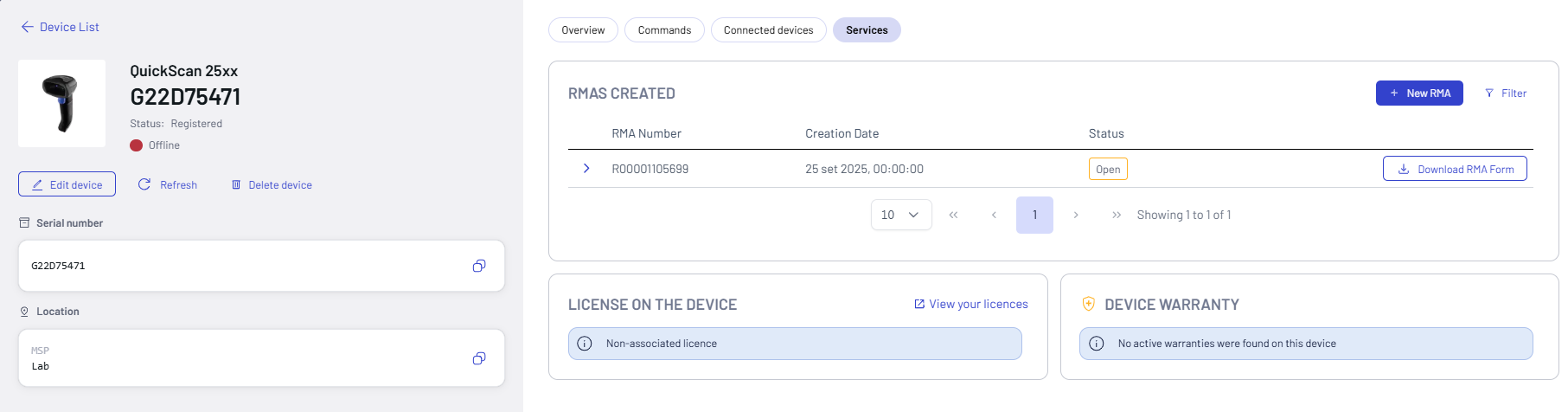
The RMA number is the unique code assigned to each returned item.
The Status can be:
- Open - The request was received and is waiting for input from a support team.
- Processing - The request is being processed but has not been completed.
- Complete - The request's task has been completed successfully.
Click the Download RMA Form button to download the RMA Form.
Click the Filter button to apply the filters to the table. You can filter your search by RMA Number, Creation Date, and Status.

Click the New RMA button to create a new RMA.