Edge Devices
Add an IoT Edge Gateway
To add an IoT Edge device to the Datalogic Connect web application:
-
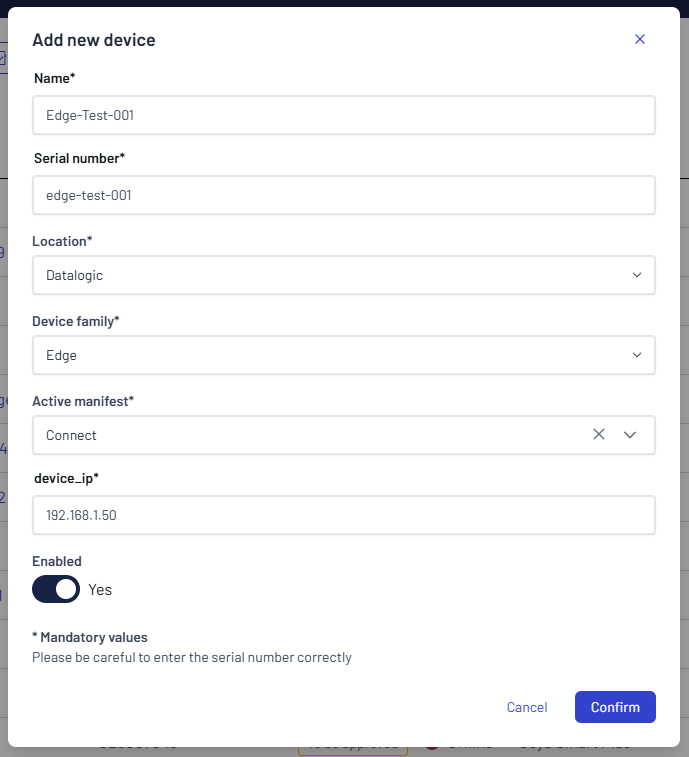
Click New to add a device and fill in the device details.
-
In the Device family dropdown, select Edge Device or the appropriate IoT Edge device type.
-
Fill in the required fields:
Field Description Name Enter a name for your edge device. Serial Number Enter an identification number for recognizing the edge device (your choice). Location Select the location from the dropdown list. Active manifest Select the manifest that will differentiate this edge device for its role. Device IP Enter the IP address of the edge device. It must be the same static IP as the one that will be configured on the device. Device parametersThe parameters are dynamic and change according to the selected Device family.
 Manifest list
Manifest Name Description ConnectBasic edge device functionality Smart VisionEdge device plus the advanced AI features for retail scenarios Produce RecognitionEdge device plus the advanced AI features for retail scenarios -
Click Confirm to add the edge device to the platform.
-
After you add the device, it appears in the device list with its details and status. Open it to download the credentials file or the installation script for this edge device from its Overview page.
The Install script option is a compressed archive which includes the setup script (for Linux, or for Windows with Azure IoT Edge for Linux on Windows (EFLOW)), a README and a SHA-256 checksum file for verifying the integrity of the downloaded files.
After creation, the edge device appears in the overview with the Registered status and stays offline until you run the install script.
Edge Device Management
After you create the edge device, its overview opens:
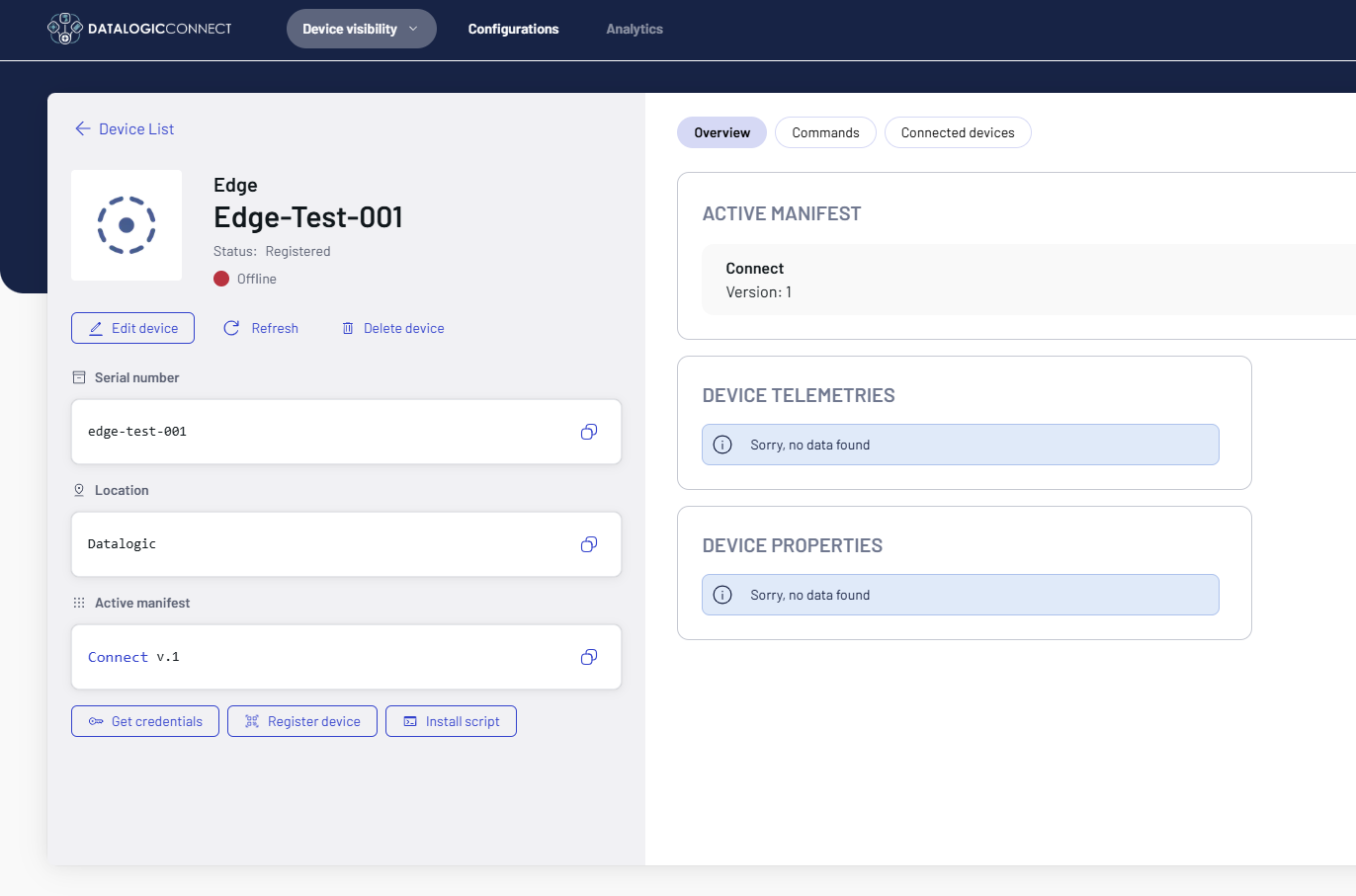
The Overview page of the edge device shows its status.
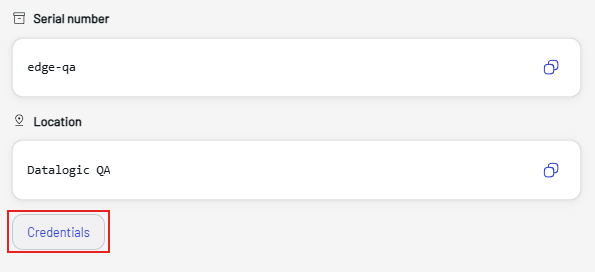
Get Credentials
Click Get credentials to open the Credentials dialog, which shows the connection details of the edge device. If needed, use these credentials to connect your edge device to Datalogic Connect. For complete installation instructions, see Install Script.
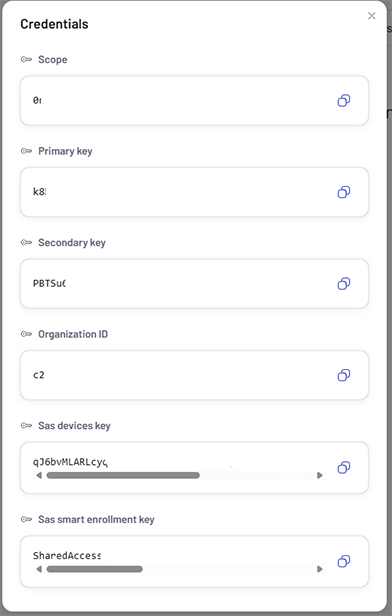
To install the edge device, download the setup script as described in Install Script and use these credentials during the installation.
Install Script
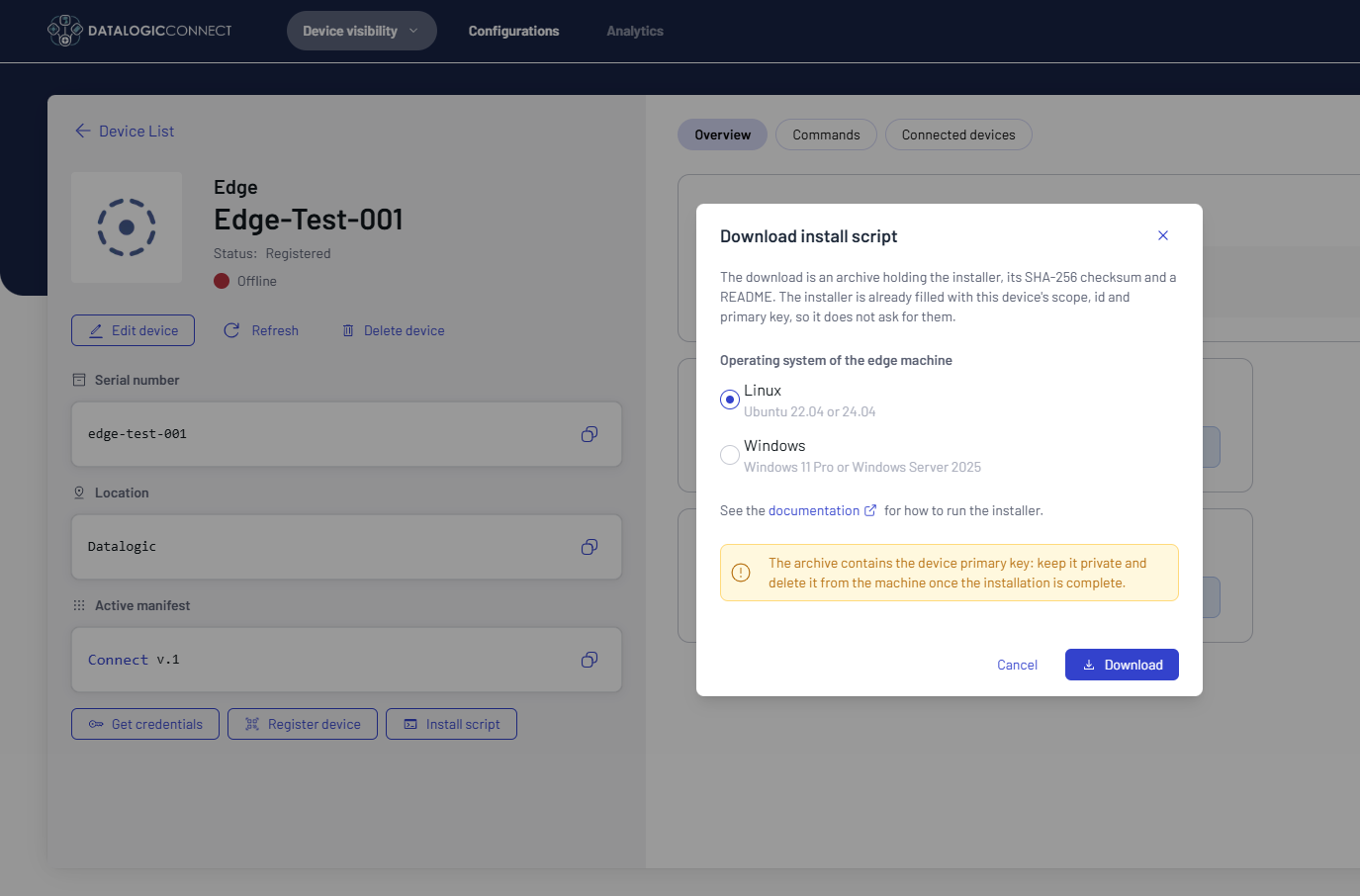
Select the chosen operating system and proceed with the installation.
Register Device
The Register device button opens the Register device dialog, which generates a QR code that a mobile device scans to register through this edge device without going through the full setup process with Scan2Deploy Studio.
This option is only valid for devices that were already enrolled through Scan2Deploy Studio previously. It does not provide the full setup with the Connect Android application, but it allows the device to be recognized and managed by the edge device if the enrollment code changes.
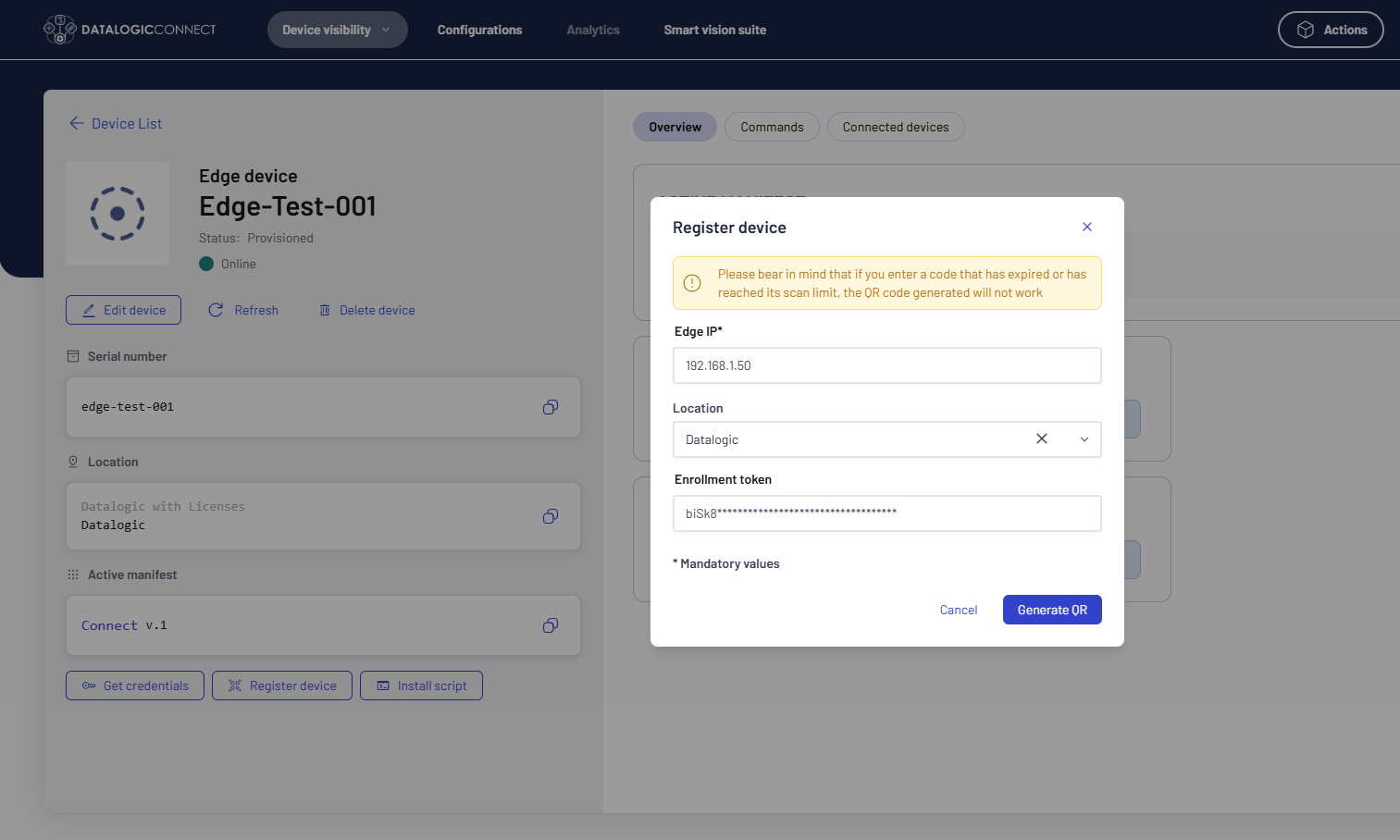
The dialog shows the following fields:
- Edge IP (mandatory) - the IP address of the edge device, prefilled with the address of the edge device you are viewing.
- Location - the location of the edge device, prefilled with the location of the edge device you are viewing. Click the X icon to clear it or the arrow to select another location.
- Enrollment token - the enrollment code generated with the Enrollment code command of this edge device, see Edge Device Commands. The value is masked on screen.
Click Generate QR to create the QR code, or Cancel to close the dialog. Scan the QR code with the Scan2Deploy app on the mobile device to register it through this edge device.
If you enter an enrollment code that has expired or has reached its scan limit, the generated QR code does not work.
Edge Device Commands
Click the Commands button to send a command to the device.
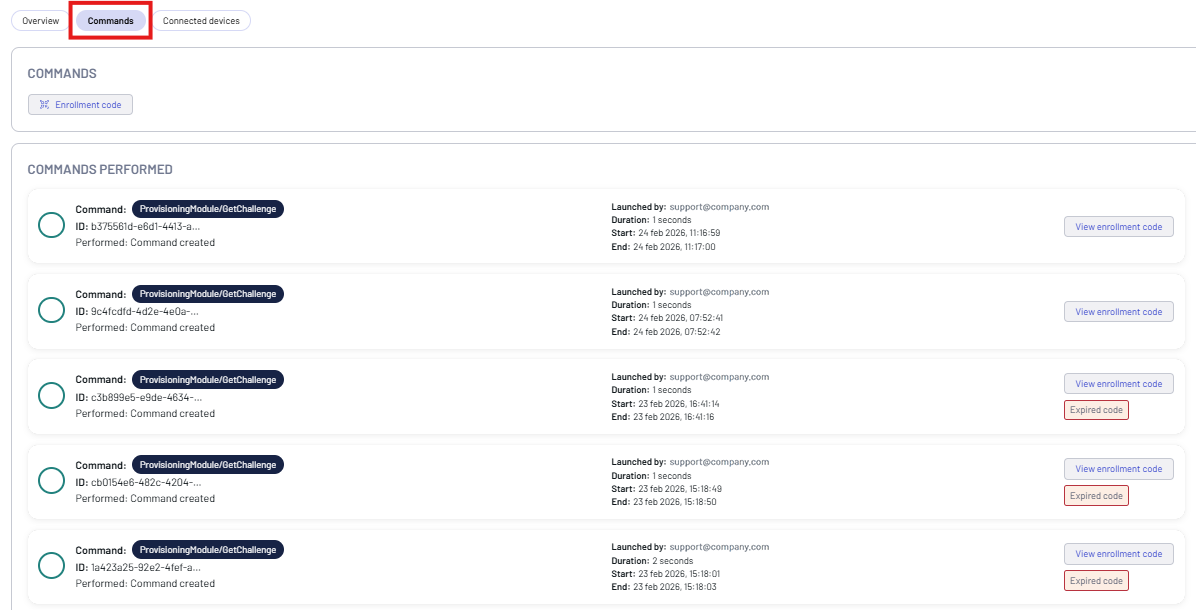
You can send the following command to an edge device:
- Enrollment code - generates a token that Scan2Deploy can use to enroll a mobile device through the selected edge device.
-
Click Enrollment code, then click Confirm.
-
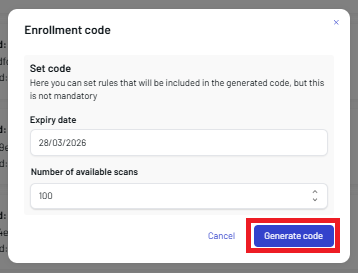
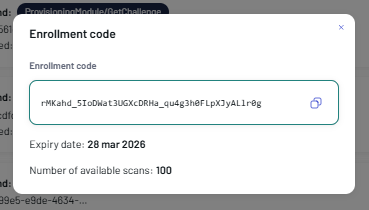
Enter the Expiry date and the Number of available scans, then click Generate code. The enrollment code is created and displayed on screen.
-
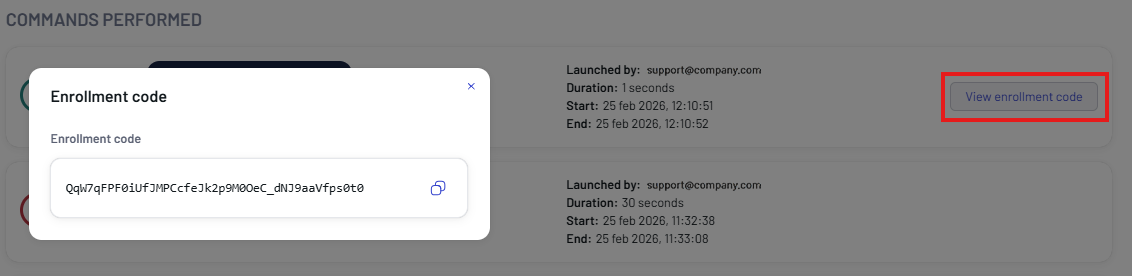
Click the copy-to-clipboard icon and use the token when configuring a mobile device in Scan2Deploy. For the complete workflow, see Enroll a Mobile Device in Datalogic Connect.
Leave the Expiry date and Number of available scans fields blank if you do not want the enrollment code to expire.
The result is shown in the COMMANDS PERFORMED box. Click the View enrollment code button to display the code again.