Mobile Computers
Battery Management
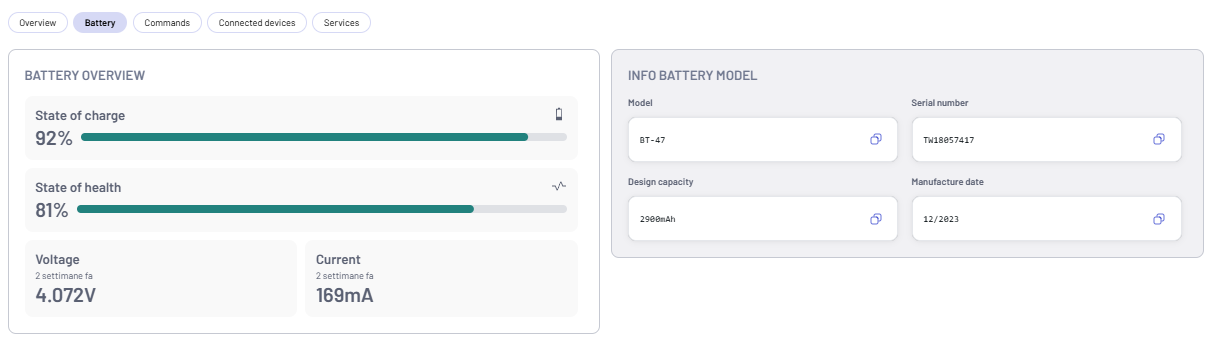
Click the Battery button to display the battery information:
- Battery model specifications
- Current charge status
- Health monitoring indicators
Mobile Computer Commands
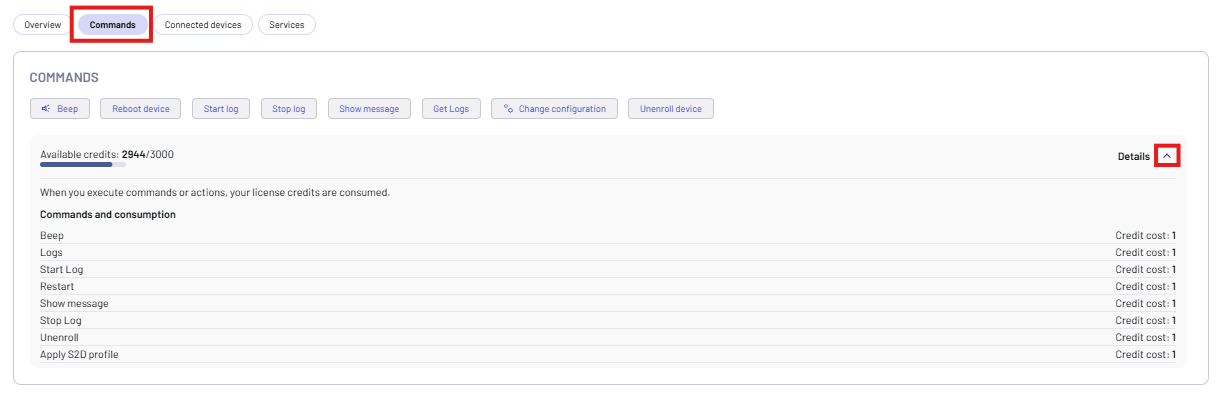
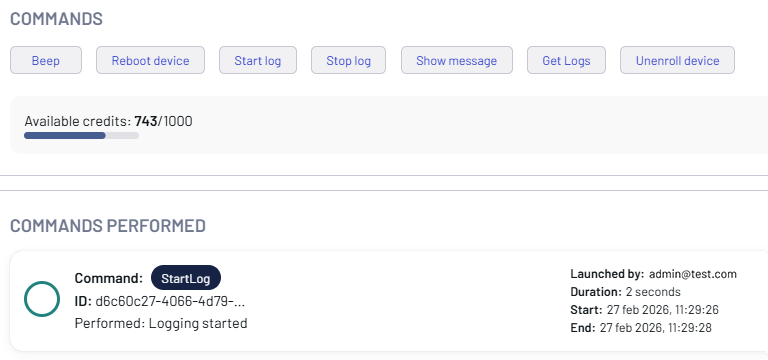
Click the Commands button to send a command to the device.
You can send the following commands to a mobile computer:
- Beep - makes the device beep.
- Reboot device - performs a reboot.
- Start log - begins a log session.
- Stop log - ends a log session.
- Show message - displays a message notification.
- Get Logs - displays the device logs.
- Change configuration - installs configuration changes.
- Unenroll device - disconnects the device from the platform.
You can also monitor your available license credits. Click Details to display the cost of each command.
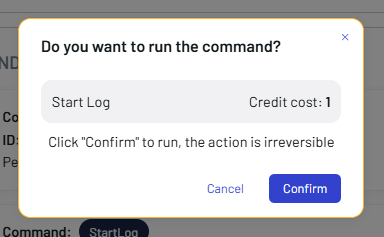
Click the related button to send a command, then click Confirm. The confirmation dialog shows the cost of the selected command.
The result is shown in the COMMANDS PERFORMED box.
Mobile Computer Logs
To retrieve logs from the device, run the Start log command to initiate a log session, then run the Stop log command to terminate it.
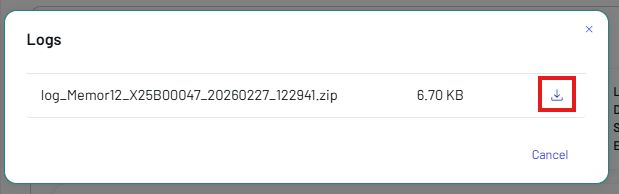
The Get Logs button retrieves the device logs from the mobile computer. Once the command is executed, click View response in the COMMANDS PERFORMED box to display and download the result as a ZIP file.

Mobile Computer Configuration
This feature is supported only on Datalogic mobile computers with a Professional license.
Click the Change configuration button to install configuration changes.
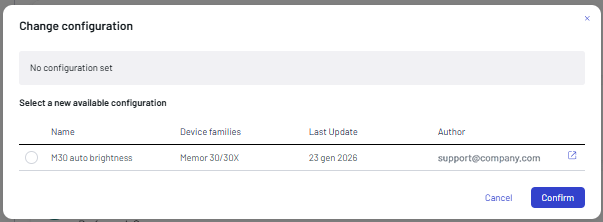
Click the external link icon on the right to display the configuration details.

Select a configuration, then click Confirm. To add a configuration to the platform, see Upload a new configuration.
Remote Control
This feature is supported only on Datalogic mobile computers with a Premium license.
The Remote Control feature lets you access, view, and control deployed mobile computers. Key capabilities include real-time screen sharing, remote device control, file explorer access, clipboard management, task monitoring, volume control, screenshot capture, and custom command execution.
To enable Remote Control, follow these steps:
-
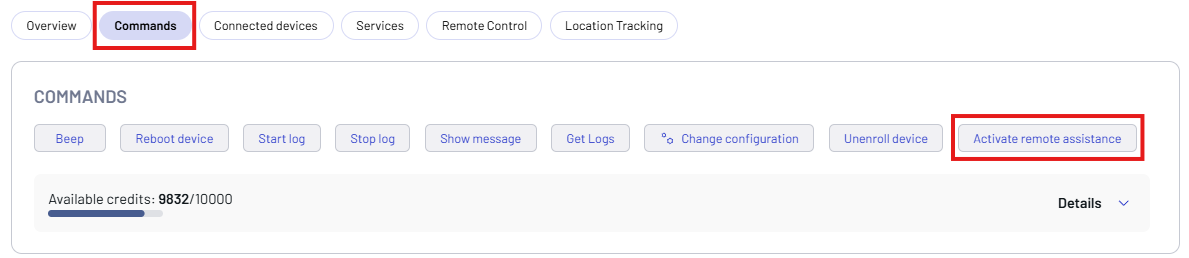
On the Commands tab, click Activate remote assistance.
-
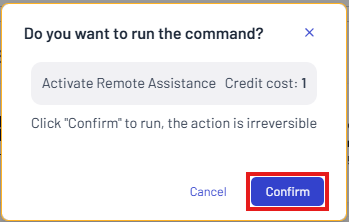
Click Confirm.
-
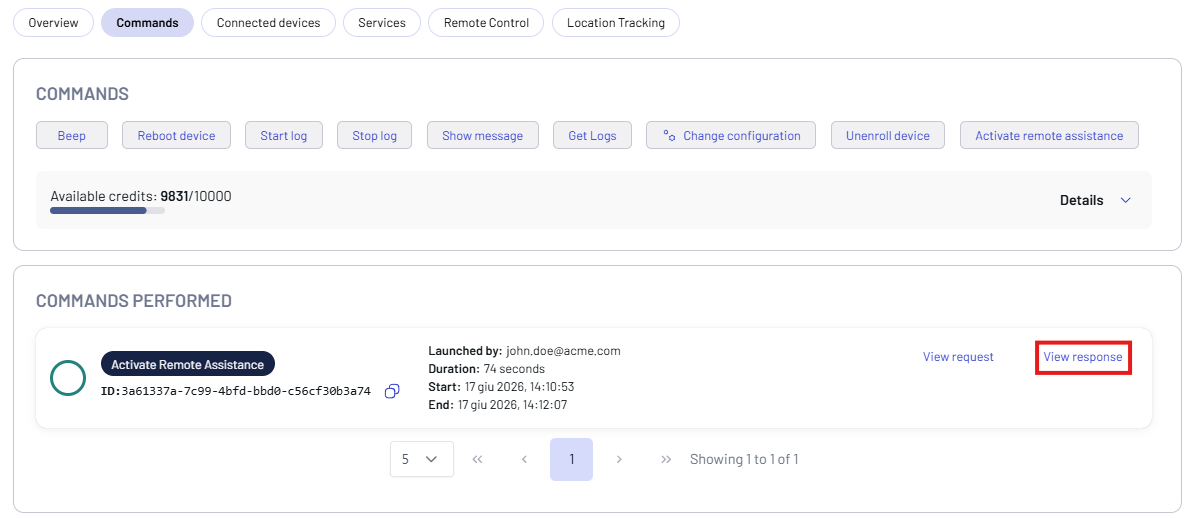
Click View response in the COMMANDS PERFORMED box to display a report of the command.
-
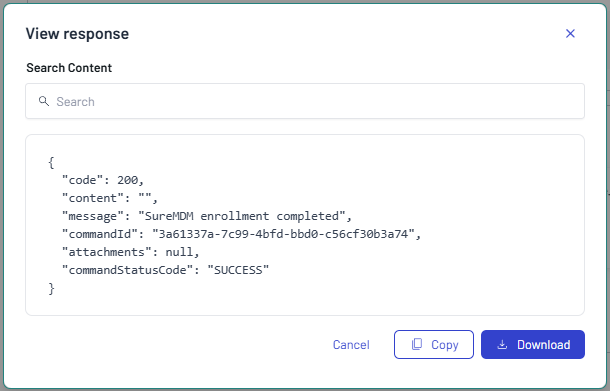
Click Copy to copy the report, or click Download to download it.
Remote Control Screen
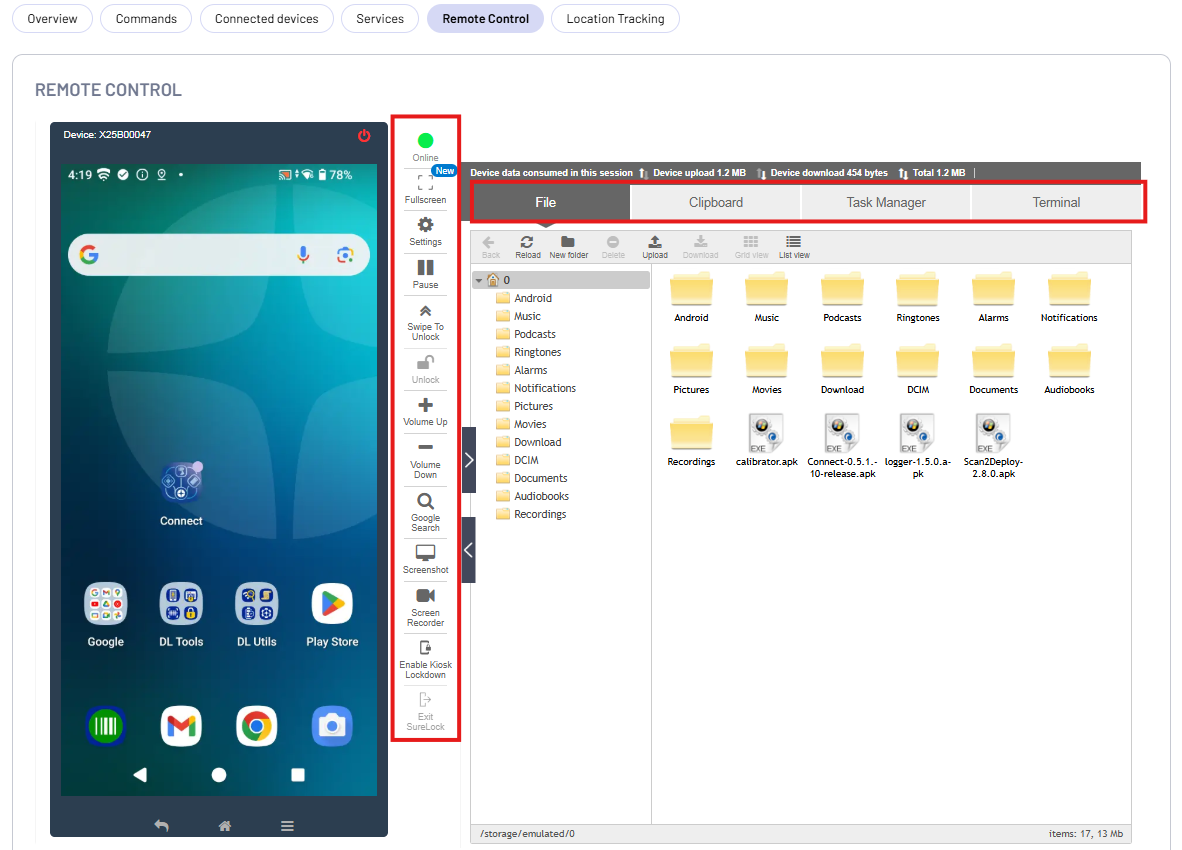
The remote screen is displayed on the left side of the Remote Control screen. The right side of the screen has the following options:
- File - access files stored on the device.
- Clipboard - send, read, and clear text from the device clipboard.
- Task Manager - monitor CPU usage, RAM usage, processes, and applications running on the remote device.
- Terminal - use the command line to send commands and run scripts on Android devices.
The Remote Control toolbar provides the following controls:
- Online (Device Status) - shows whether the device is communicating with Datalogic Connect.
- Fullscreen - expands the remote session window to full-screen mode.
- Settings - opens the options to rotate the screen view or adjust the screenshot image quality.
- Play / Pause - starts or freezes the real-time screen sharing. Pausing the stream keeps the session connected while stopping live data consumption.
- Swipe to Unlock - simulates a swipe gesture on the remote display. Device authentication and management policies still apply.
- Unlock - sends the supported wake or unlock action to the mobile computer.
- Volume Up / Down - increases or decreases the device volume.
- Google Search - opens the search field of the remote-control interface.
- Screenshot - captures and downloads a screenshot in WebP format.
- Screen Recorder - records video clips of the device screen.
- Enable Kiosk Lockdown - applies a kiosk lockdown profile to the mobile computer, restricting it to one or more allowed apps.
- Exit SureLock - removes the active lockdown and restores standard access to the device.
Location Tracking
This feature is supported only on Datalogic mobile computers with a Premium license.
Use the Location Tracking feature to remotely enable and manage location services on enrolled devices. Administrators can configure custom update intervals to control the frequency of location data syncing.
Location Tracking is disabled by default. Click On to enable it.

Configure the Location Tracking Settings:
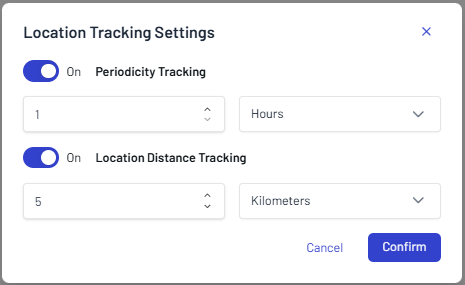
- Periodicity Tracking - when enabled, the device sends a location update at a set time interval.
- Location Distance Tracking - when enabled, the device sends a location update when it moves farther than a set distance.
To change these settings later, click Settings in the top-right corner of the Location Tracking screen.
Location Tracking Screen
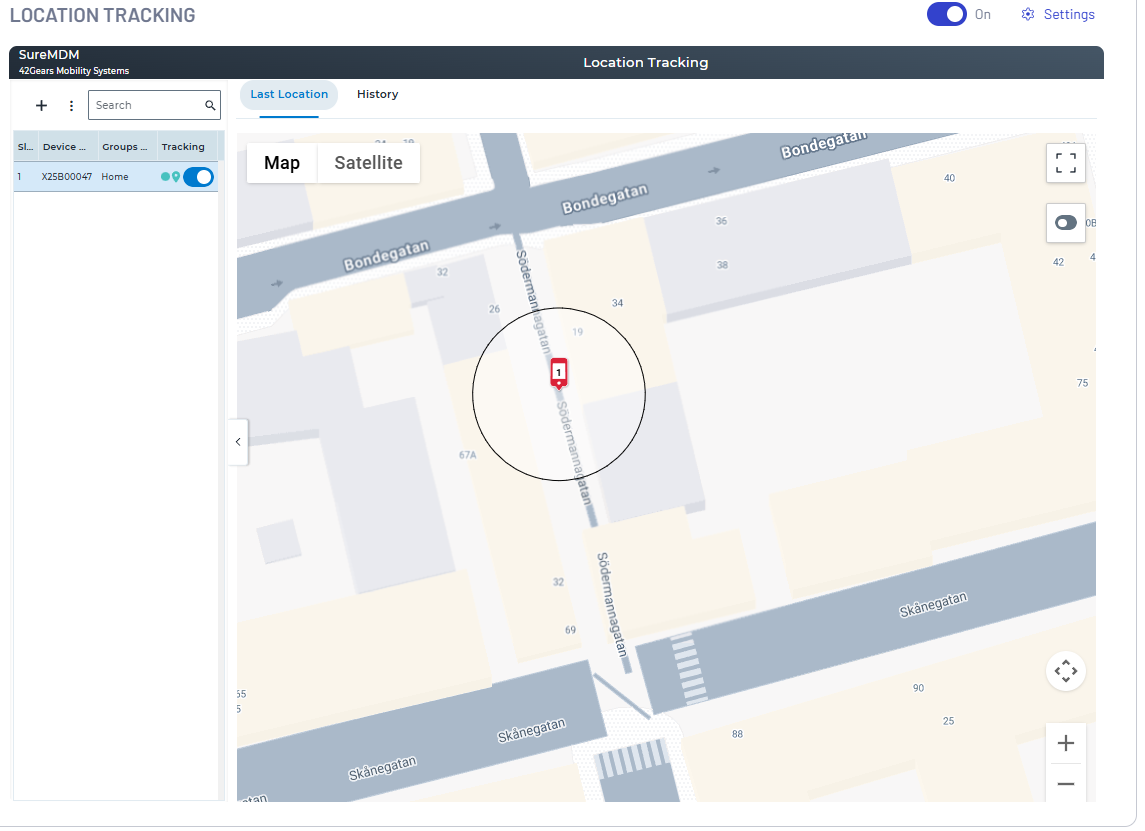
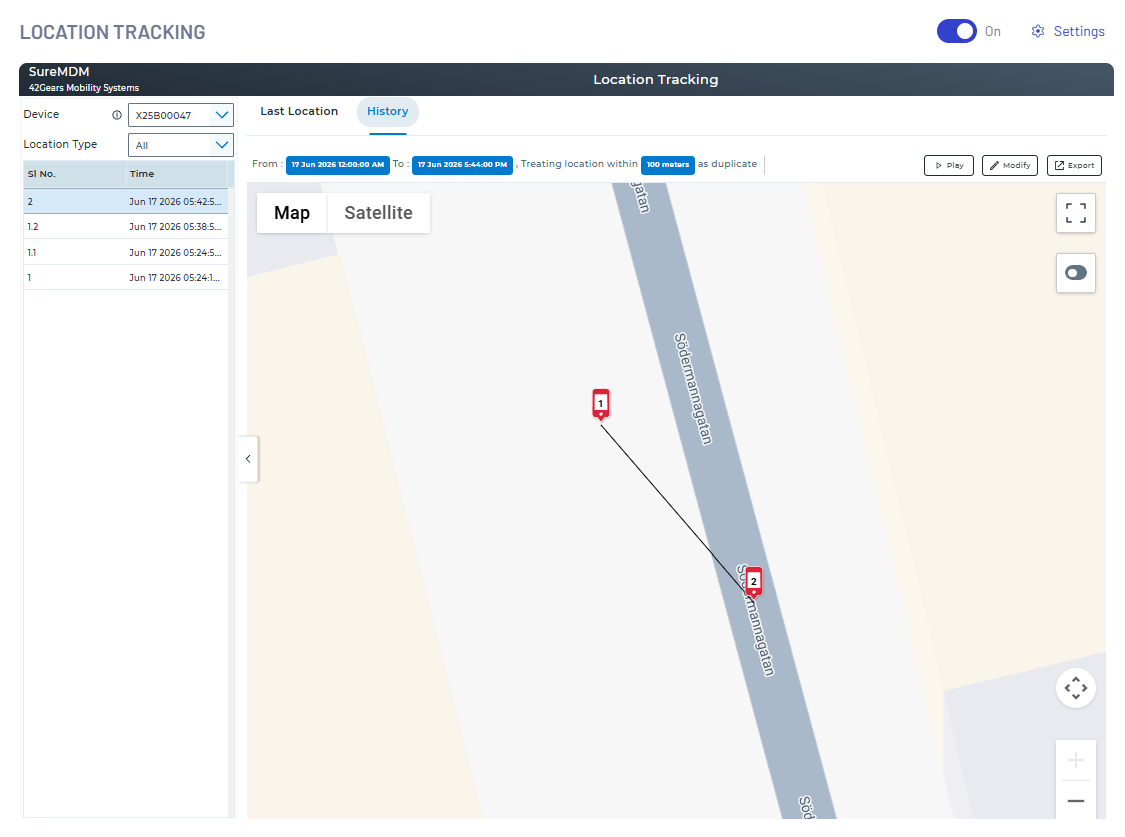
The Location Tracking screen offers three views:
- Last Location - shows the most recent position reported by the mobile computer.
- Live Location - starts a real-time, on-demand tracking session that updates the device position on the map.
- History - shows the route the device traveled over a selected date and time range. Click Play to animate the route.